


As a supplier of Omron PLCs, I've received numerous inquiries about setting up DeviceNet communication in an Omron PLC. DeviceNet is a widely used industrial network protocol that allows for easy communication between various devices in a manufacturing or industrial automation environment. In this blog post, I'll guide you through the process of setting up DeviceNet communication in an Omron PLC, providing step-by-step instructions and useful tips along the way.
Understanding DeviceNet and Omron PLCs
Before we dive into the setup process, let's briefly understand what DeviceNet is and how it interacts with Omron PLCs. DeviceNet is a member of the Controller Area Network (CAN) family and is designed for connecting industrial devices such as sensors, actuators, and controllers. It offers a simple, cost-effective way to transfer data between devices, reducing wiring costs and improving system reliability.
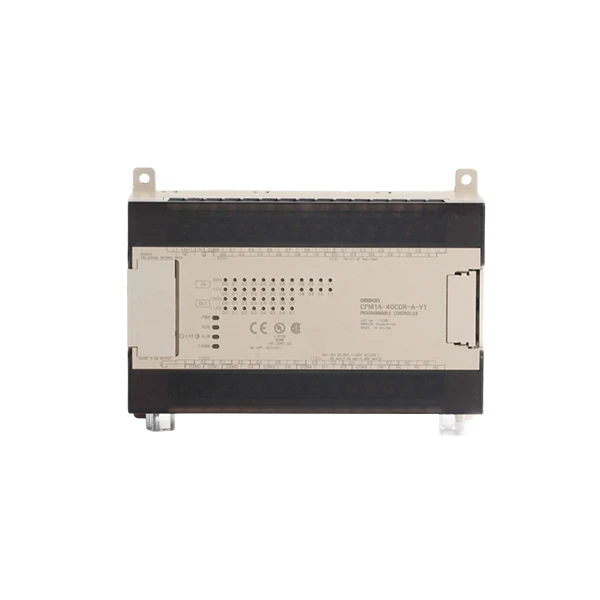

Omron PLCs are known for their high performance, reliability, and flexibility in industrial automation applications. They support a wide range of communication protocols, including DeviceNet, which enables seamless integration with other devices on the network. By setting up DeviceNet communication in an Omron PLC, you can create a more efficient and integrated automation system.
Prerequisites
Before you start setting up DeviceNet communication, you'll need the following:
- Omron PLC: You can choose from a variety of Omron PLC models, such as the Omron CPM1A-40CDR-A-V1 or the Omron CP1H-EX40DT-D. Make sure your PLC has the necessary communication ports and modules to support DeviceNet.
- DeviceNet Interface Module: For example, the OMRON CJ1W-II101 Interface Module can be used to enable DeviceNet communication in your Omron PLC.
- DeviceNet Cable and Connectors: You'll need appropriate DeviceNet cables and connectors to connect your PLC and other devices on the network.
- Configuration Software: Omron provides software tools such as CX-Programmer or Sysmac Studio for configuring your PLC and setting up communication protocols.
Step-by-Step Setup Process
Step 1: Hardware Installation
- Install the Interface Module: Insert the DeviceNet interface module into the appropriate slot on your Omron PLC. Make sure it is securely seated and the power is turned off during installation.
- Connect the Devices: Use the DeviceNet cable and connectors to connect your PLC to other devices on the network, such as sensors and actuators. Ensure that the network is properly terminated at both ends to prevent signal reflections.
Step 2: Software Configuration
- Open the Configuration Software: Launch the Omron configuration software, such as CX-Programmer or Sysmac Studio.
- Create a New Project: If you haven't already, create a new project in the software and select your Omron PLC model.
- Configure the Interface Module: Navigate to the communication settings in the software and configure the DeviceNet interface module. You'll need to set parameters such as the network speed, node address, and communication timeout.
- Define the Device Database: The software allows you to define the devices connected to the DeviceNet network. You can select the device type from a pre-defined database or enter the device information manually.
- Map the Data: Map the data between your Omron PLC and the connected devices. This involves specifying which memory areas in the PLC will be used to exchange data with the devices on the network.
Step 3: Network Testing
- Power On the Devices: Turn on the power to your Omron PLC and all the connected devices on the DeviceNet network.
- Check the Communication Status: Use the diagnostic tools in the configuration software to check the communication status between the PLC and the devices. Look for any error messages or warnings that may indicate a problem with the setup.
- Test the Data Exchange: Write a simple program in the PLC to test the data exchange with the connected devices. You can read data from sensors or send control signals to actuators to verify that the communication is working properly.
Troubleshooting Tips
- Check the Hardware Connections: Make sure all the cables and connectors are properly connected and there are no loose connections or damaged cables.
- Verify the Configuration Settings: Double-check the configuration settings in the software to ensure that they are correct. Incorrect settings can cause communication errors.
- Update the Firmware: Check if there are any firmware updates available for your Omron PLC and the DeviceNet interface module. Updating the firmware can sometimes resolve communication issues.
- Use Diagnostic Tools: The Omron configuration software provides diagnostic tools that can help you identify and troubleshoot communication problems. Use these tools to analyze the network traffic and identify any issues.
Benefits of DeviceNet Communication in Omron PLCs
- Simplified Wiring: DeviceNet reduces the amount of wiring required in an automation system by allowing multiple devices to be connected to a single network cable.
- Improved System Reliability: The protocol uses a redundant communication mechanism to ensure reliable data transfer, reducing the risk of communication failures.
- Easy Integration: Omron PLCs support DeviceNet, making it easy to integrate with other devices on the network, such as sensors, actuators, and controllers.
- Cost-Effective: DeviceNet is a cost-effective solution for industrial communication, offering a high level of functionality at a relatively low cost.
Conclusion
Setting up DeviceNet communication in an Omron PLC is a straightforward process that can significantly enhance the efficiency and functionality of your industrial automation system. By following the steps outlined in this blog post and using the appropriate hardware and software tools, you can easily configure your Omron PLC to communicate with other devices on the DeviceNet network.
If you have any questions or need further assistance with setting up DeviceNet communication in your Omron PLC, or if you're interested in purchasing Omron PLC products, please don't hesitate to contact us. We're here to help you find the best solutions for your industrial automation needs.
References
- Omron Corporation. (Year). Omron PLC User Manual.
- DeviceNet Manufacturers Association. (Year). DeviceNet Specification.


