


As a supplier of Siemens PLC modules, I've encountered numerous situations where customers face input/output (I/O) faults in these modules. These faults can disrupt industrial processes, leading to downtime and potential losses. In this blog, I'll share some practical steps to troubleshoot I/O faults in Siemens PLC modules.
Understanding the Basics of Siemens PLC I/O Modules
Before diving into troubleshooting, it's essential to have a basic understanding of Siemens PLC I/O modules. These modules are responsible for interfacing the PLC with the external world. Input modules receive signals from sensors, switches, and other field devices, while output modules send control signals to actuators, relays, and other output devices.
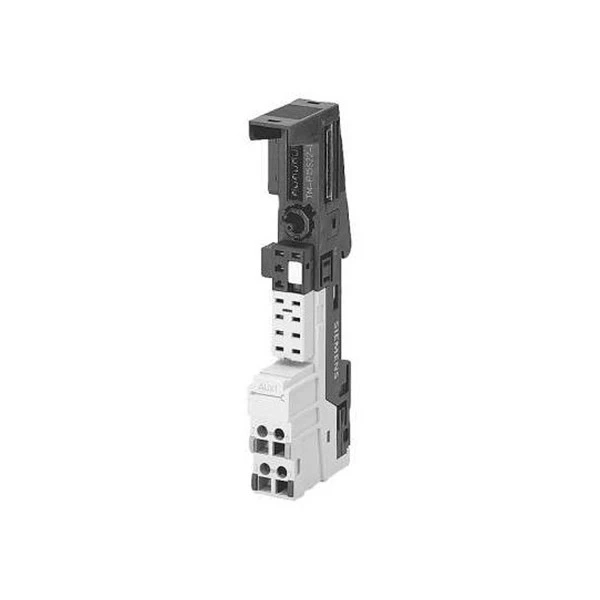
Siemens offers a wide range of I/O modules, each designed for specific applications. For example, the Siemens ET 200S 6ES7151-1BA02-0AB0 is a popular distributed I/O system that can be used in various industrial environments. The Siemens 6ES7193-4CD20-0AA0 is a SIMATIC DP interface module, which enables communication between the PLC and other devices on the DP network. And the SIEMENS 6ES7138-4FR00-0AA0 is a digital input module for connecting binary sensors.
Step 1: Visual Inspection
The first step in troubleshooting I/O faults is a visual inspection. Check the module for any obvious signs of damage, such as burnt components, loose connections, or broken wires. Look for any error indicators on the module, which can provide valuable clues about the problem. For example, a red LED may indicate a power supply issue, while a blinking LED may suggest a communication problem.
Inspect the cables and connectors as well. Make sure they are properly plugged in and not damaged. Loose or damaged cables can cause intermittent faults, which can be difficult to diagnose. If you find any damaged components or cables, replace them immediately.

Step 2: Check the Power Supply
A faulty power supply is a common cause of I/O faults. Check the power supply voltage to the module using a multimeter. Make sure the voltage is within the specified range for the module. If the voltage is too low or too high, it can cause the module to malfunction.
Check the power supply module itself for any signs of damage. Look for blown fuses, burnt components, or other visible problems. If the power supply module is faulty, replace it with a new one.
Step 3: Verify the Configuration
Make sure the I/O module is correctly configured in the PLC programming software. Check the module address, input/output types, and other settings. Incorrect configuration can cause the module to not work properly.
Compare the configuration of the module with the documentation provided by Siemens. If you are unsure about the configuration, refer to the user manual or contact Siemens technical support for assistance.
Step 4: Test the Input/Output Signals
Use a signal tester or a multimeter to test the input and output signals of the module. For input modules, apply a known signal to the input terminals and check if the module is receiving the signal correctly. For output modules, use the PLC programming software to send a control signal to the module and check if the output terminal is producing the expected signal.
If the input or output signals are not as expected, check the wiring and the connected devices. Make sure the sensors or actuators are working properly and are connected correctly to the module.
Step 5: Check the Communication
If the I/O module is part of a networked system, check the communication between the module and the PLC. Make sure the network cables are properly connected and not damaged. Check the network settings in the PLC programming software, such as the IP address, subnet mask, and gateway.
Use the diagnostic tools provided by Siemens to check the communication status of the module. These tools can help you identify any communication errors or problems. If there is a communication problem, try resetting the module and the network devices. If the problem persists, contact Siemens technical support for further assistance.
Step 6: Isolate the Problem
If you have multiple I/O modules in the system, try isolating the problem to a specific module. Disconnect the other modules and test the suspect module alone. This can help you determine if the problem is with the module itself or with the rest of the system.
If the problem disappears when the other modules are disconnected, it may indicate a problem with the communication or the power supply shared by the modules. If the problem persists, the suspect module is likely faulty and needs to be replaced.
Step 7: Replace the Faulty Module
If all the above steps have failed to resolve the problem, the I/O module may be faulty and need to be replaced. Before replacing the module, make sure you have the correct replacement part. Refer to the module documentation or contact Siemens or your supplier to get the correct part number.
When replacing the module, follow the proper installation procedures. Make sure the new module is correctly installed and connected. After replacing the module, repeat the testing steps to ensure that the problem has been resolved.
Conclusion
Troubleshooting I/O faults in Siemens PLC modules requires a systematic approach. By following the steps outlined in this blog, you can quickly identify and resolve most I/O faults. Remember to always refer to the module documentation and seek technical support if you are unsure about any step in the troubleshooting process.
As a Siemens PLC module supplier, we are committed to providing high-quality products and excellent customer service. If you are experiencing I/O faults in your Siemens PLC modules or need any other assistance, please don't hesitate to contact us for procurement and further discussion. We have a team of experienced professionals who can help you choose the right modules for your application and provide technical support when needed.
References
- Siemens PLC User Manuals
- Siemens Technical Support Documentation


