


Writing sequential function chart (SFC) programs for Schneider PLCs can be a rewarding skill, especially when you're a professional in the field or a business dealing with automation. As a supplier of Schneider PLCs, I've had the privilege of working closely with these powerful devices and understand the intricacies of SFC programming. In this blog, I'll guide you through the process of writing SFC programs for Schneider PLCs, from the basics to more advanced concepts.
Understanding Sequential Function Charts
Sequential function charts are a graphical programming language used to describe the sequence of operations in a control system. They are particularly useful for programming complex processes that involve multiple steps and conditions. SFCs use a set of standardized symbols and rules to represent the flow of control through a program.
The main components of an SFC include:
- Steps: These represent the individual states or operations in the process. Each step can have one or more actions associated with it.
- Transitions: Transitions are used to control the flow between steps. They are activated when certain conditions are met.
- Actions: Actions define what the PLC should do when a step is active. They can include outputting signals, reading inputs, or performing calculations.
Getting Started with Schneider PLCs
Before you start writing SFC programs, you need to have a basic understanding of Schneider PLCs and the programming software. Schneider offers a range of PLCs, each with its own features and capabilities. For example, the TM258LD42DT Schneider Electric is a popular choice for small to medium-sized applications.
To program Schneider PLCs, you'll typically use the Unity Pro software. This software provides a user-friendly interface for creating, editing, and debugging SFC programs. It also includes a range of tools and libraries to help you develop your programs more efficiently.
Creating an SFC Program in Unity Pro
Here are the general steps to create an SFC program in Unity Pro:
Step 1: Define the Project
- Open Unity Pro and create a new project. Select the appropriate PLC model for your application.
- Configure the communication settings to establish a connection between the software and the PLC.
Step 2: Design the SFC Structure
- In the programming window, create a new SFC block. This will be the main container for your SFC program.
- Add steps to the SFC block. You can do this by right-clicking on the SFC block and selecting "Add Step".
- Define the actions for each step. You can use the built-in function blocks or write your own ladder logic to perform the required operations.
Step 3: Add Transitions
- Between each step, add transitions to control the flow of the program. Transitions can be based on input signals, timers, or other conditions.
- Define the conditions for each transition. You can use logical expressions or function blocks to specify the conditions.
Step 4: Test and Debug the Program
- Once you've completed the SFC program, download it to the PLC and test it. Use the monitoring tools in Unity Pro to check the status of the steps and transitions.
- If you encounter any errors or issues, use the debugging tools to identify and fix them.
Advanced SFC Programming Techniques
As you become more familiar with SFC programming, you can start using some advanced techniques to improve the performance and flexibility of your programs.
Parallel Branches
Parallel branches allow you to execute multiple sequences of steps simultaneously. This can be useful for applications where you need to perform multiple tasks at the same time.
To create a parallel branch in an SFC program, you can use the "Parallel Branch" and "Parallel Merge" symbols. These symbols are used to split and join the flow of control between multiple branches.
Subroutines
Subroutines are reusable blocks of code that can be called from within an SFC program. They can help you organize your code and make it more modular.
To create a subroutine in Unity Pro, you can use the "Subroutine" function block. You can then call the subroutine from within an SFC step using the "Call Subroutine" function block.
Error Handling
Error handling is an important aspect of any control system. In SFC programs, you can use error handling techniques to detect and respond to errors in the process.
One way to implement error handling in an SFC program is to use a dedicated error handling step. This step can be activated when an error condition is detected, and it can perform actions such as shutting down the system or sending an alarm.
Using Schneider Communication Modules
Schneider offers a range of communication modules that can be used to connect PLCs to other devices and systems. For example, the Schneider VW3A3627 Communication Module can be used to establish a Modbus TCP connection between the PLC and a PC or other devices.
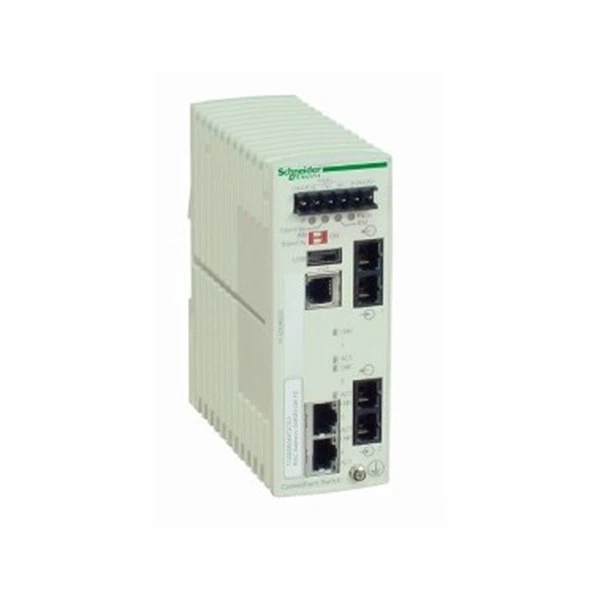

When using communication modules in an SFC program, you need to configure the communication settings and use the appropriate function blocks to send and receive data. Unity Pro provides a range of function blocks for different communication protocols, which can simplify the programming process.
Troubleshooting SFC Programs
Even with careful planning and programming, you may encounter issues with your SFC programs. Here are some common problems and their solutions:
Transition Not Activating
If a transition is not activating, it could be due to a problem with the transition conditions. Check the logical expressions or function blocks used to define the conditions and make sure they are correct.
Step Not Executing
If a step is not executing, it could be due to a problem with the step actions or the transition conditions. Check the actions associated with the step and make sure they are valid. Also, check the transition conditions to ensure that the step is being activated correctly.
Communication Errors
If you are experiencing communication errors when using a communication module, check the communication settings and make sure they are configured correctly. Also, check the physical connections between the PLC and the communication module.
Conclusion
Writing sequential function chart programs for Schneider PLCs can be a complex but rewarding task. By following the steps outlined in this blog and using the advanced techniques and tools available in Unity Pro, you can create efficient and reliable control systems.
As a Schneider PLC supplier, I'm here to help you with any questions or issues you may have. Whether you're a beginner or an experienced programmer, I can provide you with the support and resources you need to succeed. If you're interested in purchasing Schneider PLCs or related products, such as the TM258LD42DT Schneider Electric, Schneider VW3A3627 Communication Module, or Schneider TCSESM043F2CS0, please feel free to contact me for a detailed discussion and procurement negotiation.
References
- Schneider Electric. (20XX). Unity Pro User Manual.
- Automation World. (20XX). Guide to Sequential Function Chart Programming.


