

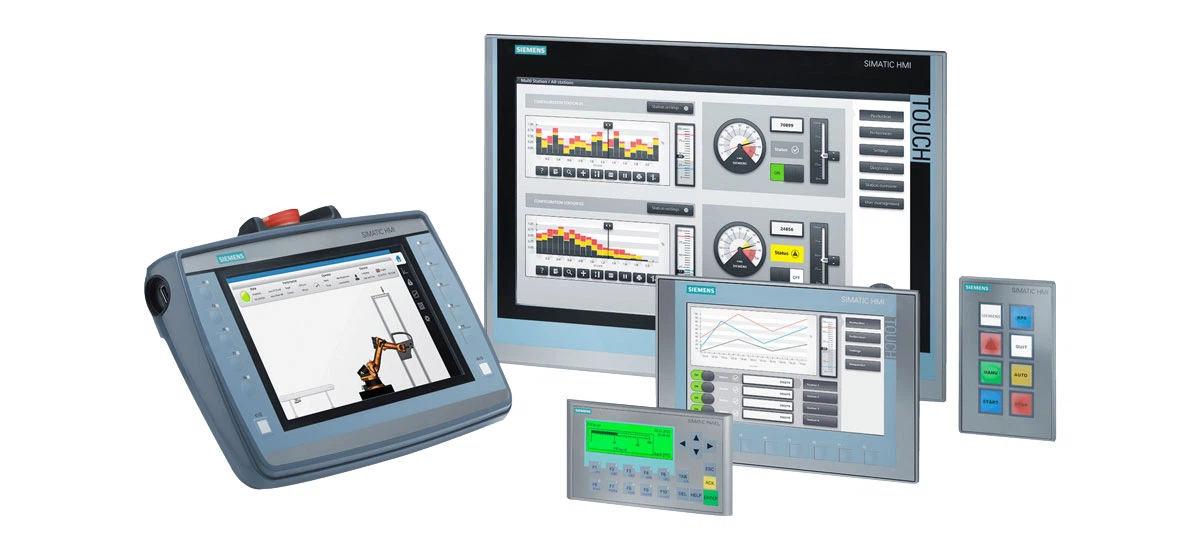
Siemens HMI touch panels serve as critical components in industrial automation systems, facilitating seamless control and monitoring of machinery by operators. To ensure the stable and reliable operation of Siemens HMI devices, regular maintenance, prompt troubleshooting of common faults, and standardized firmware updates are indispensable. This blog provides a comprehensive, step-by-step guide to resolving typical issues and executing firmware updates for Siemens touch panels, catering to both entry-level technicians and basic maintenance personnel.
Why Siemens HMI Maintenance Matters
Siemens HMI touch panels are extensively deployed across factories and production lines. A well-maintained Siemens HMI minimizes unplanned downtime, enhances operational efficiency, and extends the device's service lifespan. Neglecting routine maintenance may result in touch latency, display malfunctions, or communication interruptions, which can disrupt the entire production workflow. Mastering basic maintenance techniques enables technicians to resolve most minor issues independently, thereby reducing avoidable repair expenditures.
Common Siemens HMI Issues and Troubleshooting Tips
Most faults encountered in Siemens touch panels fall into three categories: hardware malfunctions, software glitches, and communication failures. Below are systematic troubleshooting methods for the most prevalent issues, aligned with official Siemens technical guidelines.
1. Power and Display Problems
Power supply and display anomalies are the most frequently reported issues with Siemens HMI touch panels. Below are systematic troubleshooting methods to resolve these issues:
- Black screen with no indicator light: Initially, verify the stability of the power supply. Siemens HMI devices typically operate on 24VDC power. Utilize a multimeter to measure the voltage and confirm correct polarity. Inspect the circuit breaker and power cable for signs of damage or wear. If the power supply is confirmed normal but the screen remains non-functional, the Siemens HMI may suffer from internal hardware failure and require professional servicing.
- Black screen but indicator light is on: This scenario usually indicates a faulty display module within the Siemens HMI. Begin by restarting the device; if the issue persists, consult a certified Siemens technician to replace the display component.
- Flickering or blurry screen: Initiate troubleshooting with a device restart to resolve temporary software glitches. If the problem persists, power off the device, disconnect all cables, and reconnect them securely. Persistent flickering or blurriness may indicate a defective backlight or internal circuitry. Prior to sending the device for repair, refer to the Siemens HMI touch screen calibration steps and perform a screen calibration as a preliminary measure.
2. Touch Response Issues
Unresponsive or inaccurate touch functionality is another common fault in Siemens HMI devices. Potential causes include surface contamination, calibration deviations, or hardware damage.
- Contaminated screen surface: Oil, dust, or moisture on the screen can interfere with touch signal transmission. Power off the Siemens HMI and wipe the screen gently with a soft microfiber cloth dampened with a small amount of pure water or specialized electronic cleaning solution. Avoid using glass cleaner or alcohol, as these substances may damage the screen's protective coating.
- Touch calibration: In cases of inaccurate touch response (e.g., tapping one location triggers another), perform a screen calibration. For most Siemens HMI models, restart the device and tap the screen corners during the startup sequence to access the Boot Loader menu. Select "Calibrate Touch" and follow the on-screen prompts to tap the calibration cross marks precisely.
- Hardware damage: If cleaning and calibration fail to resolve the issue, inspect the screen for hidden cracks. Use a flashlight to check for signs of liquid intrusion or pressure damage. Any detected physical damage necessitates touch panel replacement.
3. Communication Failures
Siemens HMI devices frequently establish connections with PLCs (Programmable Logic Controllers). Communication errors-such as "Connection failed" alerts or stagnant data updates-can halt production operations. The following steps outline how to troubleshoot How to fix Siemens HMI communication errors:
- Inspect physical connections: Ensure Ethernet cables, DP plugs, and MPI cables are securely connected and free from damage. Employ a cable tester to verify signal continuity.
- Validate configuration settings: Confirm that the IP addresses of the Siemens HMI and PLC belong to the same network segment. For PROFIBUS connections, verify that the address and baud rate settings are consistent. Within TIA Portal, cross-check the PLC rack number and slot number for accuracy.
- Monitor PLC operational status: Ensure the PLC is in RUN mode. Utilize the "Online & Diagnostics" function in TIA Portal to scan for connected devices and verify communication status.
4. Software and License Issues
- Project initialization failure: If the Siemens HMI remains stuck on the startup screen or freezes during the "Loading..." phase, restore factory settings via the Boot Loader menu. Note: This operation will erase all stored data, so ensure project backups are completed beforehand. Alternatively, re-download the project using TIA Portal or WinCC Flexible software.
- Missing license error: In the event of a "Runtime License is missing" notification, confirm that the HMI model specified in the project matches the physical hardware. Use the Siemens Automation License Manager to transfer the required license from a USB storage device to the Siemens HMI.
Siemens HMI Firmware Updates: Step-by-Step Guide
Firmware updates address software bugs, enhance device compatibility, and optimize the overall performance of Siemens HMI systems. Adhere to the following steps to perform a secure firmware update, in line with Siemens HMI firmware update best practices.
Pre-Update Preparation
- Back up critical data: Prior to initiating the update, back up all projects, configuration settings, and licenses to a USB drive or computer. This precaution prevents data loss in the event of an update failure.
- Download compatible firmware: Access the official Siemens website to download the latest firmware version tailored to your HMI model (e.g., TP1200 Comfort, KTP700 Basic). Ensure the firmware version is compatible with both your PLC and TIA Portal version (e.g., TIA Portal V17).
- Prepare a USB storage device: Format the USB drive to the FAT32 file system and copy the firmware file to its root directory.
Update Process
- Power off the Siemens HMI and insert the prepared USB drive into the device's USB port.
- Restart the HMI and access the Boot Loader menu by tapping the screen corners during the startup phase.
- Select "Update OS" or "Firmware Update" from the menu. The Siemens HMI will automatically detect the firmware file stored on the USB drive.
- Follow the on-screen instructions to initiate the update. Under no circumstances should the power be turned off or the USB drive removed during the process, as this may cause irreversible device damage.
- Upon completion of the update, the Siemens HMI will restart automatically. Restore the backed-up project and configuration settings.
Common Firmware Update Issues
If the firmware update fails, conduct the following checks: Verify the functionality of the USB drive and ensure the firmware file is not corrupted. Confirm the firmware is compatible with the specific Siemens HMI model. If the device displays a "System Card Error," inspect the memory card slot for debris or damage and replace the system card if necessary.
Daily Maintenance Tips for Siemens HMI
Routine maintenance is pivotal to preventing most faults in Siemens HMI devices. Below are essential maintenance protocols:
- Regular cleaning: For devices in 24-hour production environments, clean the screen every 8 hours. For low-frequency usage, weekly cleaning is sufficient. Use a soft brush to remove dust from edges and crevices and a microfiber cloth for screen cleaning.
- Environmental control: Operate the Siemens HMI within a temperature range of 0-50℃ and a humidity level of 10%-90% (without condensation). Avoid positioning the device near high-power equipment to minimize electromagnetic interference.
- Cable inspection: Conduct quarterly inspections of cables and interfaces to identify looseness or oxidation. Replace damaged cables promptly to maintain reliable connections.
- Regular backups: Perform project backups following any modifications (e.g., alarm adjustments, formula revisions) to prevent data loss.
When to Seek Professional Help
If all troubleshooting steps are exhausted and the fault persists, the issue may stem from severe hardware failure (e.g., damaged power module, faulty circuit board). For matters related to the Siemens HMI hardware repair guide, contact Siemens official service centers or certified repair partners. Do not attempt to disassemble the device independently, as this may void the warranty and cause further damage.
Conclusion
Proper maintenance, systematic troubleshooting, and regular firmware updates are fundamental to ensuring the long-term stable operation of Siemens HMI devices. By following the protocols outlined in this blog, technicians can resolve common faults, execute secure firmware updates, and extend the service life of Siemens touch panels. Always adhere to official Siemens guidelines and complete data backups prior to making configuration changes. With rigorous maintenance practices, Siemens HMI devices will continue to deliver reliable performance to support industrial production operations.


