

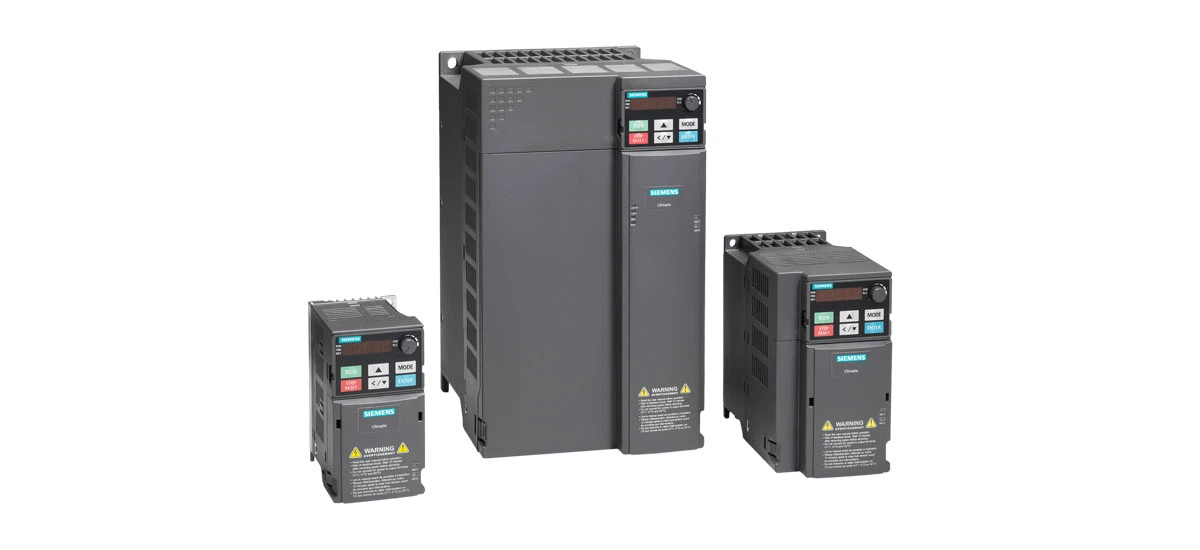
If you use a Siemens VFD (Variable Frequency Drive) in your industrial operations or daily equipment, you know how important it is to keep it running smoothly. One of the most effective ways to ensure your Siemens VFD works at its best is to update its firmware regularly. Firmware is like the "brain" of your Siemens VFD-it controls how the drive operates, communicates with other devices, and handles different tasks. In this blog, we'll walk you through a simple step-by-step guide to upgrade your Siemens VFD firmware, explain the key benefits of updating, and answer common questions.
What Is Siemens VFD Firmware, and Why Does It Matter?
First, let's make sure we understand what firmware is. Firmware is a type of software that's built into your Siemens VFD. Unlike regular software that you can install on a computer, firmware is permanent (unless you update it) and controls the basic functions of the drive. It helps your Siemens VFD adjust motor speed, manage power usage, and work with other industrial equipment like PLCs (Programmable Logic Controllers).
Keeping your Siemens VFD firmware up to date is crucial for several reasons. Outdated firmware can cause your Siemens VFD to run slowly, have errors, or even stop working. It can also miss out on new features that make your Siemens VFD more efficient, safer, and easier to use. Whether you're using a Siemens VFD for a small machine or a large industrial system, regular firmware updates will help you get the most out of your device. One common question we get is: how to update Siemens VFD firmware-and we'll answer that in detail later!
Preparations Before Updating Your Siemens VFD Firmware
Before you start the upgrade process, it's important to prepare properly. This will help avoid mistakes and ensure the update goes smoothly. Here's what you need to do:
1. Check Your Current Siemens VFD Firmware Version
First, find out which firmware version your Siemens VFD is currently using. You can do this by checking the display on the Siemens VFD itself or by connecting the drive to a computer with Siemens software (like STARTER or TIA Portal). Write down the version number-this will help you confirm if you need an update and ensure you download the correct new version. This step is also important for checking Siemens VFD firmware version compatibility-you don't want to download a version that doesn't work with your drive.
2. Back Up Your Siemens VFD Parameters
Firmware updates can sometimes reset your Siemens VFD's parameters (settings) to default. To avoid losing your custom settings, back up the parameters before you start. You can back them up to a computer, a memory card, or a USB drive using Siemens software. This way, if something goes wrong, you can easily restore your settings and get your Siemens VFD back to working order. This is a key step in Siemens VFD firmware update troubleshooting-prevention is better than fixing problems later!
3. Download the Correct Firmware Version
Go to the official Siemens website to download the latest firmware for your specific Siemens VFD model. Make sure you select the right model number-using the wrong firmware can damage your Siemens VFD. The official website is the safest place to download firmware, as it ensures you get a genuine, error-free file. Avoid third-party websites, as they may have outdated or malicious files. This step is essential for following Siemens VFD firmware update steps correctly.
4. Gather the Necessary Tools
You'll need a few tools to complete the update: a computer with Siemens software (STARTER or TIA Portal), a communication cable (to connect your computer to the Siemens VFD), and a stable power supply. If you're using a memory card to update the firmware (some Siemens VFD models support this), make sure the card is compatible and formatted correctly. Having these tools ready will make the process faster and easier.
5. Ensure a Stable Power Supply
Firmware updates can take a few minutes, and if the power cuts out during the process, it can damage your Siemens VFD. To prevent this, use an Uninterruptible Power Supply (UPS) to keep the Siemens VFD and your computer powered during the update. This is a common tip in how to update Siemens VFD firmware safely.
Step-by-Step Guide to Upgrade Siemens VFD Firmware
Now that you're prepared, let's walk through the step-by-step process to update your Siemens VFD firmware. This guide is simple and easy to follow, even if you're not a technical expert. Remember to take your time and follow each step carefully-rushing can lead to mistakes.
Step 1: Connect Your Computer to the Siemens VFD
Use the communication cable to connect your computer to the Siemens VFD. Make sure both the computer and the Siemens VFD are turned off before connecting the cable. Once the cable is connected, turn on the Siemens VFD first, then turn on your computer. Open the Siemens software (STARTER or TIA Portal) on your computer and follow the instructions to connect to the Siemens VFD. The software will detect the drive and display its current firmware version.
Step 2: Verify the Current Firmware Version
In the Siemens software, check the current firmware version of your Siemens VFD. Compare it to the latest version you downloaded from the Siemens website. If the downloaded version is newer, you're ready to proceed. If your Siemens VFD already has the latest firmware, you don't need to update it-this saves you time and avoids unnecessary work. This step also helps confirm Siemens VFD firmware version compatibility.
Step 3: Initiate the Firmware Update
In the Siemens software, find the "Firmware Update" option (this may be under "Device" or "Maintenance"). Select the firmware file you downloaded earlier and click "Start Update." The software will display a progress bar showing how much of the update is complete. Do not turn off the Siemens VFD or your computer during this process-this is the most important rule for Siemens VFD firmware update steps.
Step 4: Wait for the Update to Complete
The firmware update can take 5 to 15 minutes, depending on your Siemens VFD model and the size of the firmware file. During this time, the Siemens VFD's display may show a "Updating" message or a progress indicator. The software on your computer will also notify you when the update is done. Be patient-rushing or interrupting the process can break your Siemens VFD.
Step 5: Restart the Siemens VFD
Once the update is complete, the software will prompt you to restart the Siemens VFD. Turn off the drive, wait 30 seconds, then turn it back on. This allows the new firmware to take effect. After restarting, check the Siemens VFD's display to make sure it's running correctly-there should be no error messages.
Step 6: Restore Your Parameters (If Needed)
If the firmware update reset your Siemens VFD's parameters, use the backup you created earlier to restore them. In the Siemens software, select the "Restore Parameters" option and choose the backup file. This will return your Siemens VFD to its custom settings, so you don't have to reconfigure everything from scratch. This step is a key part of Siemens VFD firmware update troubleshooting if you lose your settings.
Step 7: Test the Siemens VFD
Finally, test your Siemens VFD to make sure it's working properly with the new firmware. Run a simple operation (like starting the motor) and check for any errors or issues. If everything runs smoothly, the update was successful! If you notice any problems, refer to the troubleshooting section below.
Key Benefits of Siemens VFD Firmware Updates
Updating your Siemens VFD firmware isn't just a "maintenance chore"-it offers real benefits that can improve your equipment's performance, safety, and efficiency. Here are the top benefits of benefits of Siemens VFD firmware update:
1. Improved Performance and Efficiency
Newer firmware versions often include optimizations that make your Siemens VFD run faster and more efficiently. For example, some updates improve the drive's ability to adjust motor speed smoothly, which reduces energy consumption and extends the life of your motor. This can save you money on electricity bills and reduce maintenance costs over time. Siemens regularly releases firmware updates to make their VFDs more efficient, so keeping your firmware up to date ensures you're getting the best performance from your Siemens VFD.
2. Bug Fixes and Error Resolution
Outdated firmware can have bugs (glitches) that cause your Siemens VFD to malfunction-like random shutdowns, error codes, or poor communication with other devices. Firmware updates fix these bugs, making your Siemens VFD more reliable. For example, if your Siemens VFD was showing an error code when connected to a PLC, a firmware update might resolve that issue. This reduces downtime and keeps your operations running smoothly.
3. New Features and Functionality
Siemens adds new features to their VFD firmware with each update. These features can make your Siemens VFD easier to use, more flexible, and better suited for your specific needs. For example, some updates add new control modes (like dynamic vector control) that improve torque accuracy, or new communication protocols that let your Siemens VFD work with newer industrial equipment. By updating your firmware, you get access to these new features without having to buy a new Siemens VFD.
4. Enhanced Safety
Safety is a top priority when using industrial equipment, and Siemens VFD firmware updates often include safety improvements. For example, some updates add better overcurrent protection, which prevents the Siemens VFD from overheating or short-circuiting. Others improve the drive's emergency stop function, making it safer for operators to use. Keeping your firmware up to date ensures your Siemens VFD meets the latest safety standards.
5. Better Compatibility with Other Equipment
If you're using other industrial equipment (like PLCs, sensors, or HMIs) with your Siemens VFD, firmware updates can improve compatibility. Newer firmware versions support the latest communication protocols, so your Siemens VFD can communicate more smoothly with other devices. This reduces communication errors and makes your entire system more reliable. This is especially important if you've recently added new equipment to your setup.
Common Issues & Troubleshooting for Siemens VFD Firmware Updates
Even with proper preparation, you might run into issues during the firmware update process. Here are some common problems and how to fix them-this is your guide to Siemens VFD firmware update troubleshooting:
Issue 1: The Update Fails to Start
If the firmware update won't start, check the following: Is your computer connected to the Siemens VFD correctly? Is the firmware file compatible with your Siemens VFD model? Did you download the firmware from the official Siemens website? Try reconnecting the communication cable, verifying the firmware file, and restarting your computer and Siemens VFD. If the problem persists, check the Siemens support website for more help.
Issue 2: The Update Gets Stuck
If the update progress bar freezes, do not turn off the Siemens VFD or your computer. Wait 10-15 minutes to see if it resumes-sometimes updates slow down due to slow communication. If it's still stuck, check the power supply (make sure the UPS is working) and the communication cable. If the cable is loose, reconnect it. If the problem continues, you may need to contact Siemens technical support.
Issue 3: The Siemens VFD Won't Restart After the Update
If your Siemens VFD won't restart after the update, check the power supply first. Make sure the drive is getting power and that the power switch is on. If the power is okay, try resetting the Siemens VFD to factory settings (using the parameter P0970 = 1) and then restoring your backup parameters. If this doesn't work, the firmware may be incompatible-try downloading the correct version and repeating the update.
Issue 4: Parameters Are Lost After the Update
If your custom parameters are lost after the update, use the backup you created earlier to restore them. If you didn't back up your parameters, you'll need to reconfigure them manually. To avoid this in the future, always back up your parameters before updating the firmware-this is a key tip for how to update Siemens VFD firmware without losing settings.
Issue 5: Error Codes After the Update
If you see error codes on the Siemens VFD's display after the update, check the error code manual (available on the Siemens website) to find out what the issue is. Common error codes after updates are related to parameter mismatches or communication issues. Try restoring your parameters or checking the connection to other devices. If the error persists, contact Siemens support.
How Often Should You Update Your Siemens VFD Firmware?
There's no "one-size-fits-all" answer, but a good rule of thumb is to check for firmware updates every 6 to 12 months. You should also update your Siemens VFD firmware if: you're experiencing issues with your drive, you've added new equipment that's incompatible with your current firmware, or Siemens releases a critical update (like a safety fix). Avoid updating too frequently, though-unless there's a specific reason, frequent updates can increase the risk of errors. Remember, the goal is to keep your Siemens VFD running smoothly, not to update it just for the sake of updating.
Conclusion
Updating your Siemens VFD firmware is a simple, effective way to keep your drive running at its best. By following the step-by-step guide in this blog, you can safely upgrade your firmware and enjoy the benefits of improved performance, better safety, new features, and enhanced compatibility. We've covered everything you need to know, from preparation to troubleshooting, and included helpful SEO keywords like how to update Siemens VFD firmware and benefits of Siemens VFD firmware update to help you find this guide when you need it.
Remember, always back up your parameters, use genuine firmware from the official Siemens website, and follow each step carefully. If you run into issues, refer to the troubleshooting section or contact Siemens technical support. With regular firmware updates, your Siemens VFD will continue to be a reliable, efficient part of your operations for years to come.
Do you have any questions about Siemens VFD firmware updates? Let us know in the comments below!


