


As a dedicated supplier of Siemens HMI products, I understand the importance of maintaining the optimal performance and appearance of these high - end human - machine interfaces. One crucial aspect of this maintenance is cleaning the display. A clean display not only enhances the visual experience but also ensures the longevity and accuracy of the HMI. In this blog, I'll share some professional tips on how to clean the display of Siemens HMI properly.
Understanding the Display Surface of Siemens HMI
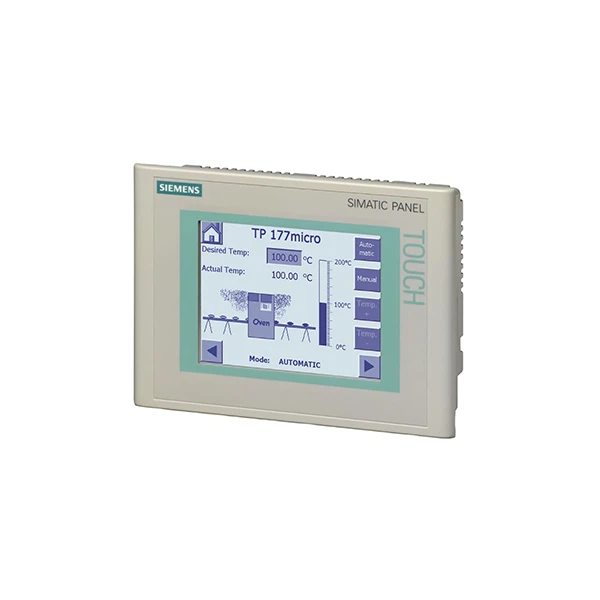
Before you start cleaning, it's essential to know the type of display surface your Siemens HMI has. Most Siemens HMIs, such as the Siemens 6AV6643 - 0BA01 - 1AX0 and Siemens 6AV6640 - 0CA11 - 0AX1, are equipped with high - quality touch - sensitive displays. These displays often have a special coating to improve visibility and touch sensitivity. Aggressive cleaning methods can damage this coating, leading to reduced performance and appearance.
Pre - cleaning Preparations
- Power Off the HMI: Always turn off the Siemens HMI before cleaning. This not only protects you from potential electrical hazards but also prevents any accidental input or system malfunctions during the cleaning process.
- Gather Cleaning Supplies: You'll need a soft, lint - free microfiber cloth. Microfiber cloths are gentle on the display surface and can effectively pick up dust and debris without scratching. Avoid using paper towels or rough fabrics, as they can cause scratches. You may also need a small amount of mild cleaning solution. A mixture of distilled water and a small amount of isopropyl alcohol (no more than 50% alcohol) can be used. However, make sure the solution is not too wet.
Cleaning Steps
- Dust Removal: Use the dry microfiber cloth to gently wipe the display surface. Start from the top and work your way down, using light, sweeping motions. This step will remove loose dust and debris. For hard - to - reach areas, such as the edges and corners, you can use a can of compressed air to blow the dust away.
- Preparing the Cleaning Solution: If the display has stubborn stains or fingerprints, dampen the microfiber cloth with the mild cleaning solution. Make sure the cloth is only slightly damp, not dripping wet. Excess liquid can seep into the HMI and cause damage.
- Wiping the Display: Gently wipe the display in a circular motion with the dampened cloth. Be careful not to apply too much pressure, especially around the edges. If there are particularly stubborn stains, you can let the damp cloth sit on the stain for a few seconds before gently rubbing it away.
- Drying the Display: After wiping the display with the damp cloth, use a dry microfiber cloth to dry the surface thoroughly. This helps prevent water spots and ensures that no moisture remains on the display.
Special Considerations for Different Siemens HMI Models
- SIMATIC HMI TP900 Comfort: This model features a high - resolution display with advanced touch technology. When cleaning, pay extra attention to the touch - sensitive areas. Avoid using abrasive materials that could damage the touch sensors. Also, be careful around the edges, as the display may be more vulnerable to liquid seepage.
- Other Models: Different Siemens HMI models may have unique features or display characteristics. Always refer to the user manual for specific cleaning instructions. Some models may have anti - glare or anti - fingerprint coatings that require special care.
Frequency of Cleaning
The frequency of cleaning depends on the environment in which the Siemens HMI is used. In a clean, dust - free environment, cleaning once a month may be sufficient. However, in industrial settings with high levels of dust, dirt, or oil, more frequent cleaning may be necessary, perhaps once a week or even more often.
Troubleshooting Cleaning - related Issues
- Scratches: If you notice scratches on the display after cleaning, it may be due to using a rough cloth or applying too much pressure. In some cases, minor scratches can be buffed out using a specialized display scratch - repair kit. However, for more severe scratches, it may be necessary to replace the display.
- Water Damage: If liquid has seeped into the HMI during cleaning, immediately power off the device and let it dry completely in a well - ventilated area. Do not attempt to turn it on until you are sure it is dry. If the HMI still does not work after drying, contact a professional technician for repair.
Maintaining a Clean HMI Environment
- Use Protective Covers: Consider using a protective cover for your Siemens HMI. This can help prevent dust, dirt, and scratches when the HMI is not in use.
- Keep the Surroundings Clean: Regularly clean the area around the HMI to reduce the amount of dust and debris that can accumulate on the display.
In conclusion, cleaning the display of your Siemens HMI is a simple yet important task that can significantly extend the life and performance of your device. By following these guidelines, you can ensure that your Siemens HMI remains in top - notch condition.
If you're in the market for Siemens HMI products or need further advice on HMI maintenance, we're here to help. Our team of experts can provide you with detailed information and support to meet your specific needs. Whether you're looking for a new HMI or need to replace a damaged one, we have a wide range of Siemens HMI models available. Reach out to us for procurement and let's start a productive discussion.
References
- Siemens HMI User Manuals
- Industry - standard guidelines for electronic device cleaning


