


As a trusted Omron HMI supplier, I've witnessed firsthand the transformative impact these human - machine interfaces can have on various industrial applications. One such area where Omron HMIs truly shine is in printing machines. In this blog, I'll explore how to use Omron HMIs in a printing machine, covering aspects from selection to configuration and operation.
Selecting the Right Omron HMI for Your Printing Machine
Printing machines come in various types and sizes, from small desktop printers for office use to large - scale commercial printing presses. The choice of Omron HMI depends on several factors.
Screen Size and Resolution
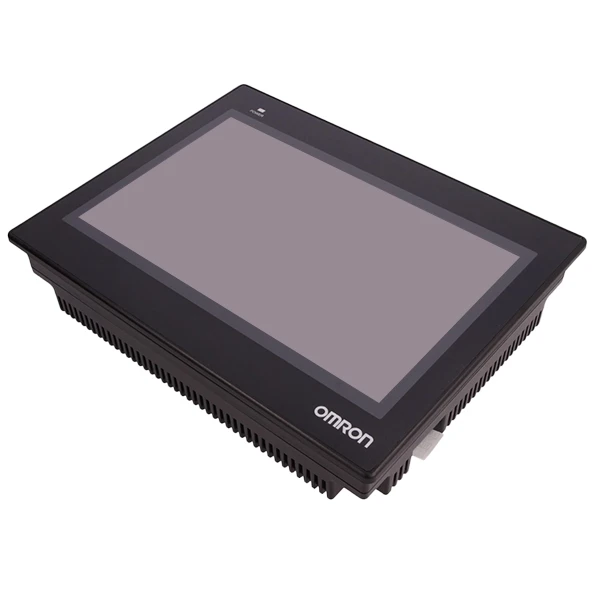
For smaller, simpler printing machines, Omron HMIs with a smaller screen size can work well. For example, the NB10W - TW01B Omron has a relatively compact screen, which is suitable for machines where space is limited and the number of display parameters is not excessive. On the other hand, larger commercial printing presses may require high - resolution, large - screen HMIs like the Omron NS12 - TS01B - V2 HMI. These large screens can display detailed graphics, multiple data points, and complex control panels, making it easier for operators to monitor and control all aspects of the printing process.
Functionality Requirements
If your printing machine requires simple on - off control and basic parameter setting, an HMI with fundamental functions will suffice. However, modern printing machines often need more advanced features such as real - time monitoring of ink levels, temperature control, and integration with other peripheral devices. The NS8 - TV01B - V2 Omron offers a wide range of communication interfaces and programming capabilities, allowing it to connect to various sensors and control devices in the printing machine. It can display real - time data on key performance indicators such as print speed, ink consumption, and paper feed rate.
Installation of Omron HMI in a Printing Machine
Mounting
Once you've selected the appropriate HMI, the next step is installation. Most Omron HMIs are designed for easy installation. You can mount them on the control panel of the printing machine either using panel - mount brackets or wall - mount options. It's crucial to ensure that the mounting location provides easy access for the operator while being protected from dust, moisture, and mechanical damage.
Electrical Connections
Proper electrical connections are vital for the HMI to function correctly. Connect the power supply to the HMI according to the manufacturer's specifications. Then, establish communication connections between the HMI and other components of the printing machine, such as sensors, actuators, and the main control unit. Omron HMIs support multiple communication protocols, including Ethernet, RS - 232, and RS - 485. Select the appropriate protocol based on the requirements of your printing machine's control system.
Configuration of Omron HMI for Printing Machine
Software Setup
Omron provides dedicated software for configuring its HMIs. Install this software on a PC and connect the HMI to the PC using a suitable communication cable. The software allows you to create custom screens, define data tags, and set up communication parameters.

Creating Custom Screens
Design screens that are tailored to the printing machine's operation. For example, you can create a main screen that displays the overall status of the printing machine, including whether it is running, paused, or in an error state. Add sub - screens for more detailed information, such as ink management, where operators can monitor ink levels, set ink flow rates, and receive alerts when ink levels are low. Use intuitive graphics and icons on the screens to make it easy for operators to understand the information at a glance.
Defining Data Tags
Data tags are used to link the HMI to the actual data sources in the printing machine. For each sensor or control variable, define a corresponding data tag in the HMI configuration software. For instance, if you have a sensor that measures the temperature of the printing head, create a data tag for this temperature value. Then, you can display this value on the HMI screen and use it for control purposes, such as triggering an alarm if the temperature exceeds a certain threshold.
Operation of Omron HMI in a Printing Machine
Monitoring
Once the HMI is configured and installed, operators can use it to monitor the printing process. They can view real - time data on the HMI screen, such as the number of printed sheets, the speed of the printing press, and the status of various components. If there are any abnormal conditions, such as a paper jam or a drop in ink pressure, the HMI can display an alarm message, allowing operators to take immediate action.
Control
The HMI also serves as a control interface. Operators can use the touch - screen functionality to start, stop, or pause the printing machine. They can adjust parameters such as printing speed, ink density, and paper feed rate directly from the HMI screen. For more advanced control, the HMI can be integrated with a programmable logic controller (PLC) to execute complex control algorithms.
Troubleshooting and Maintenance
Diagnostic Tools
Omron HMIs are equipped with diagnostic tools that can help in troubleshooting. The HMI can display error codes and diagnostic messages, which can be used to identify the root cause of a problem quickly. For example, if the HMI shows an error code related to a communication failure with a sensor, operators can check the connection between the HMI and the sensor.
Maintenance
Regular maintenance of the HMI is essential to ensure its long - term reliability. Clean the screen regularly to prevent dirt and dust from affecting the touch - screen functionality. Check the electrical connections periodically to ensure they are secure. If there are any issues with the HMI software, follow the manufacturer's instructions for software updates and troubleshooting.
Conclusion
Using Omron HMIs in a printing machine can significantly enhance the machine's performance, efficiency, and ease of operation. By carefully selecting the right HMI, properly installing and configuring it, and effectively using it for monitoring and control, you can optimize the printing process and reduce downtime.
If you're in the market for an Omron HMI for your printing machine or need more information about our products and services, we invite you to contact us for a procurement discussion. Our team of experts is ready to assist you in finding the best HMI solution for your specific needs.
References
- Omron HMI User Manuals
- Industrial Automation Textbooks on Human - Machine Interfaces


