


Backing up programs in Siemens PLC modules is a critical task for ensuring the reliability and continuity of industrial automation systems. As a Siemens PLC module supplier, I understand the importance of this process and have extensive experience in guiding customers through it. In this blog, I'll share detailed steps on how to perform a backup of the program in a Siemens PLC module, along with some practical tips and considerations.
Understanding the Importance of Backup
Before delving into the backup process, it's essential to understand why backing up PLC programs is crucial. Industrial automation systems rely heavily on PLCs to control various processes. A program stored in a PLC module dictates how machines operate, sequences tasks, and responds to different inputs. If the program is lost due to hardware failure, software glitches, or human error, it can lead to significant downtime, production losses, and even safety risks. By regularly backing up the program, you can quickly restore the system to its normal operation in case of an unexpected event.
Prerequisites for Backup
Before you start the backup process, there are several prerequisites you need to ensure:

- Suitable Backup Software: You need to have the appropriate software installed on your computer. For Siemens PLCs, TIA Portal (Totally Integrated Automation Portal) is a popular choice. It provides a comprehensive environment for programming, configuration, and backup of Siemens PLCs.
- Communication Connection: Establish a communication connection between your computer and the Siemens PLC module. This can be done using Ethernet, PROFIBUS, or other supported communication protocols. Make sure the connection is stable and the settings are correctly configured.
- Authorization and Access Rights: You must have the necessary authorization and access rights to read the program from the PLC module. Check the security settings of the PLC and ensure that your user account has the appropriate permissions.
Step-by-Step Backup Process
Step 1: Open the TIA Portal
Launch the TIA Portal software on your computer. If you haven't already, create a new project or open an existing one that contains the PLC module you want to back up.
Step 2: Connect to the PLC
In the TIA Portal, go to the "Online" menu and select "Accessible Devices". The software will search for available PLCs on the network. Once the PLC is detected, select it and click "Connect". You may need to enter the IP address or other communication settings if they are not automatically detected.
Step 3: Read the Program from the PLC
After establishing the connection, go to the "PLC" menu and select "Upload Station to PG". This will initiate the process of reading the program from the PLC module to your computer. The software will display a progress bar indicating the status of the upload.
Step 4: Save the Backup
Once the upload is complete, save the backup file to a secure location on your computer. You can choose a local hard drive, an external storage device, or a network drive. Make sure to give the backup file a meaningful name and include the date and time of the backup for easy identification.
Step 5: Verify the Backup
To ensure the integrity of the backup, you can compare the uploaded program with the original program in the TIA Portal. You can also simulate the program to check if it functions correctly. If any discrepancies are found, repeat the backup process.
Different Types of Siemens PLC Modules and Backup Considerations
Siemens offers a wide range of PLC modules, each with its own characteristics and backup requirements. Here are some common types of Siemens PLC modules and their backup considerations:
- SIMATIC S7-300 SM 331 SM 332: These modules are part of the SIMATIC S7-300 series, which is widely used in industrial automation. When backing up programs in these modules, make sure to use the appropriate version of the TIA Portal software. Some older models may require specific settings or compatibility patches.
- SIMATIC S7 ET 200S: The SIMATIC S7 ET 200S is a distributed I/O system that can be used in combination with Siemens PLCs. When backing up programs that involve ET 200S modules, pay attention to the configuration settings of the I/O modules. Make sure to back up not only the program but also the configuration data to ensure a complete restoration.
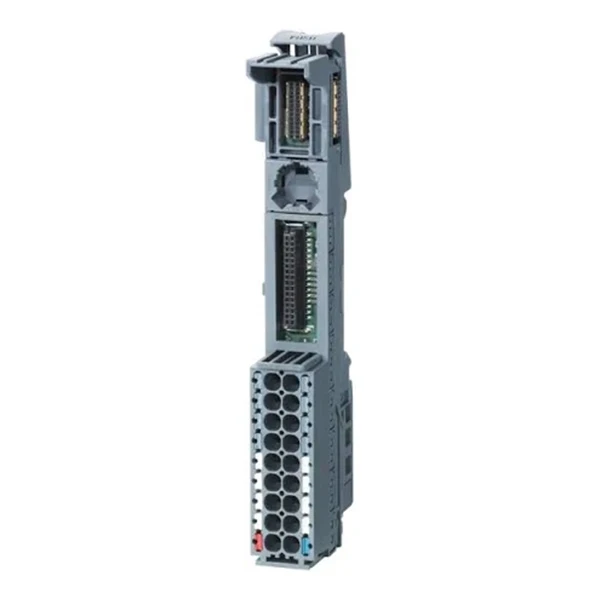
- SIMATIC ET 200SP Base Unit: The SIMATIC ET 200SP is a modular I/O system with high flexibility and performance. When backing up programs in ET 200SP base units, consider the modular nature of the system. You may need to back up the programs and configurations of each individual module separately.
Additional Tips for Backup
- Regular Backup Schedule: Establish a regular backup schedule to ensure that the program is backed up at regular intervals. This can be daily, weekly, or monthly, depending on the criticality of the system.
- Multiple Backup Copies: Make multiple copies of the backup file and store them in different locations. This provides an extra layer of protection in case one of the backup copies is damaged or lost.
- Documentation: Keep detailed documentation of the backup process, including the date and time of the backup, the version of the software used, and any special settings or considerations. This will help you troubleshoot any issues that may arise during the restoration process.
Conclusion
Performing a backup of the program in a Siemens PLC module is a straightforward process if you follow the correct steps and take the necessary precautions. By regularly backing up your PLC programs, you can ensure the reliability and continuity of your industrial automation system. As a Siemens PLC module supplier, I'm here to provide you with the necessary support and guidance. If you have any questions or need further assistance with backup or any other aspects of Siemens PLC modules, please feel free to contact me for procurement and further discussions.
References
- Siemens AG. (2023). TIA Portal User Manual.
- Siemens Industrial Automation and Drives Technologies. (2023). SIMATIC S7-300 System Manual.
- Siemens Industry Sector. (2023). SIMATIC ET 200S System Manual.
- Siemens Digital Industries. (2023). SIMATIC ET 200SP System Manual.


