


As a trusted supplier of Omron HMI (Human-Machine Interface) products, I understand the importance of ensuring these devices operate smoothly. Software errors can be a common headache for users, but with the right troubleshooting steps, they can be resolved effectively. In this blog, I'll share some practical tips on how to troubleshoot software errors on Omron HMI.
Understanding the Basics of Omron HMI Software
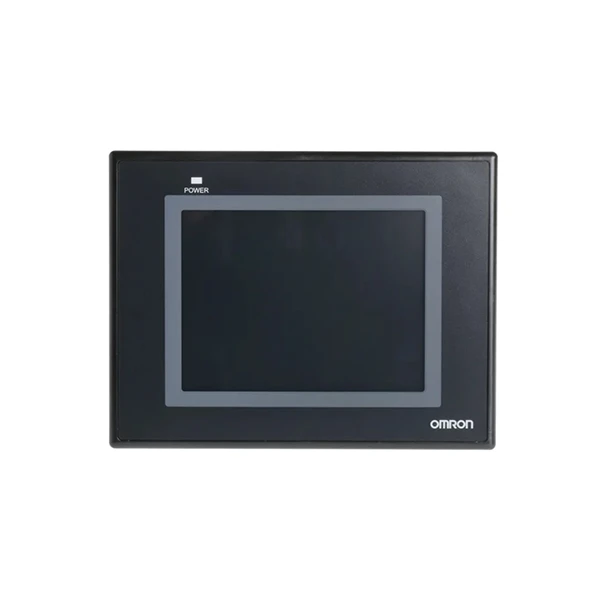
Before diving into troubleshooting, it's essential to have a basic understanding of Omron HMI software. Omron offers a range of HMI models, each with its own software features and requirements. For example, the NB10W-TW01B Omron is a popular model known for its user-friendly interface and reliable performance. The software for these HMIs is designed to communicate with various industrial devices, such as PLCs (Programmable Logic Controllers), and provide a visual interface for operators to monitor and control processes.
Common Software Errors and Their Symptoms
- Communication Errors:
- Symptoms: The HMI fails to establish a connection with the connected device, such as a PLC. You may see error messages indicating a communication timeout or a loss of connection.
- Possible Causes: Incorrect communication settings, such as wrong baud rate, parity, or IP address; damaged communication cables; or issues with the connected device itself.
- Display Errors:
- Symptoms: The HMI screen may show incorrect or distorted images, missing text, or flickering.
- Possible Causes: Software glitches, incorrect screen resolution settings, or problems with the display hardware.
- Functionality Errors:
- Symptoms: Buttons on the HMI may not respond as expected, or certain functions may not work correctly.
- Possible Causes: Incorrect programming of the HMI software, conflicts with other software running on the device, or issues with the underlying system.
Troubleshooting Steps
Step 1: Check the Hardware
- Inspect the Cables:
- Ensure that all communication cables between the HMI and the connected devices are properly connected and not damaged. A loose or damaged cable can cause communication errors.
- Check the Power Supply:
- Make sure the HMI is receiving a stable power supply. A fluctuating power supply can cause software glitches and other issues.
- Verify the Display Hardware:
- If you are experiencing display errors, check the display itself. Make sure it is properly connected to the HMI and that there are no visible signs of damage.
Step 2: Review the Communication Settings
- Check the Configuration:
- Open the HMI software configuration tool and verify that the communication settings are correct. This includes the baud rate, parity, stop bits, and IP address (if applicable). Compare these settings with the settings of the connected device.
- Test the Communication:
- Use the diagnostic tools provided by the HMI software to test the communication with the connected device. This can help you identify if the problem is with the HMI or the connected device.
Step 3: Update the Software
- Check for Updates:
- Visit the official Omron website to check if there are any software updates available for your HMI model. Installing the latest software updates can often fix known bugs and improve the performance of the HMI.
- Backup Your Data:
- Before updating the software, make sure to backup all your important data and settings. This will ensure that you can restore them if something goes wrong during the update process.
Step 4: Review the Programming
- Check the Logic:
- If you are experiencing functionality errors, review the programming logic of the HMI software. Make sure that all buttons and functions are programmed correctly and that there are no logical errors.
- Debug the Program:
- Use the debugging tools provided by the HMI software to identify and fix any programming errors. These tools can help you step through the program and identify where the problem is occurring.
Step 5: Seek Professional Help
If you have followed all the above steps and are still unable to resolve the software error, it may be time to seek professional help. As an Omron HMI supplier, we have a team of experienced technicians who can provide technical support and assistance. We can help you diagnose and fix the problem, and ensure that your HMI is up and running smoothly.
Conclusion
Troubleshooting software errors on Omron HMI can be a challenging task, but with the right approach, it can be done effectively. By following the steps outlined in this blog, you can identify and resolve common software errors, and ensure that your Omron HMI is operating at its best. If you have any questions or need further assistance, please don't hesitate to contact us. We are here to help you with all your Omron HMI needs, whether it's troubleshooting, purchasing, or technical support. Contact us today to start a discussion about your requirements and explore how our Omron HMI products can enhance your industrial processes.

References
- Omron official documentation for HMI products.
- Industry - standard guides on industrial automation and HMI troubleshooting.


