


As a trusted Siemens HMI supplier, I understand the importance of keeping your Human - Machine Interface (HMI) up - to - date with the latest firmware. Firmware updates can enhance the performance, security, and functionality of your Siemens HMI devices. In this blog, I will guide you through the process of updating the firmware of Siemens HMI step by step.
Why Firmware Updates are Crucial
Before we delve into the update process, let's understand why firmware updates are so important. Firstly, new firmware versions often come with bug fixes. These bugs can cause glitches, slowdowns, or even system crashes in your HMI. By updating the firmware, you can eliminate these issues and ensure smooth operation.
Secondly, security is a major concern in today's digital age. Firmware updates usually include security patches that protect your HMI from potential cyber - threats. This is especially important if your HMI is connected to a network or the internet.
Lastly, new firmware may introduce new features or improve existing ones. These can enhance the user experience, increase productivity, and give your business a competitive edge.
Prerequisites for Firmware Update
Before you start the firmware update process, there are several prerequisites you need to fulfill.
- Backup your data: It is crucial to back up all the data on your HMI, including user programs, configuration settings, and historical data. This ensures that you don't lose any important information during the update process.
- Check the compatibility: Make sure the new firmware version is compatible with your specific Siemens HMI model. You can find this information on the official Siemens website or in the product documentation.
- Prepare the necessary tools: You will need a suitable storage device, such as a USB flash drive, to transfer the firmware file to the HMI. Additionally, you may need a PC with the appropriate software installed to manage the update process.
Step - by - Step Guide to Update Firmware
Step 1: Download the Firmware
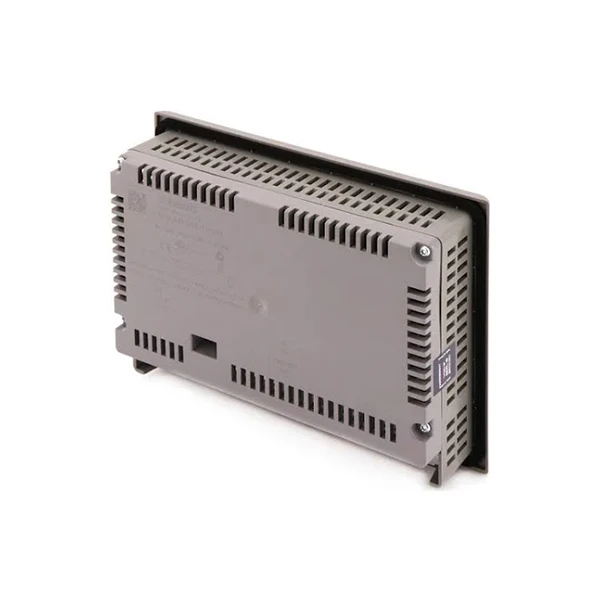
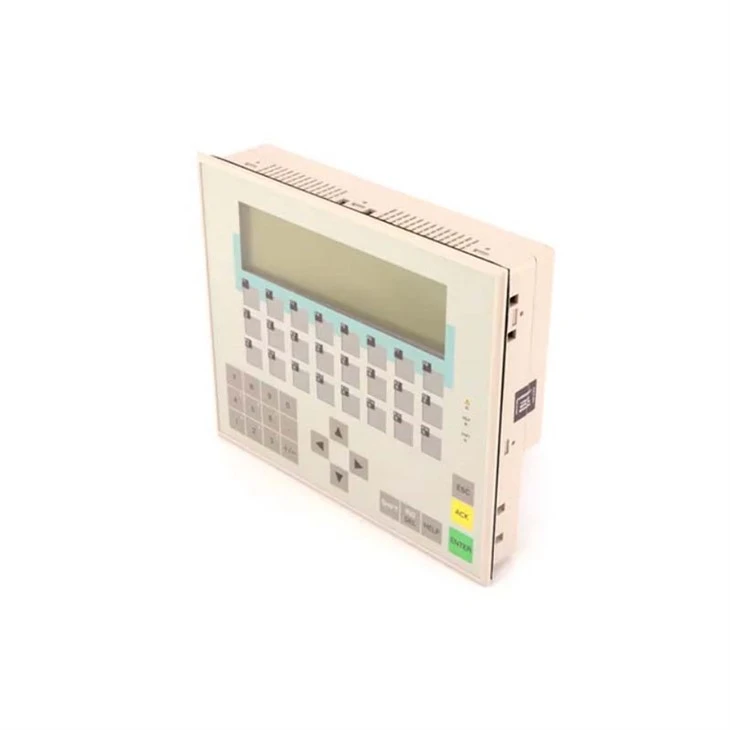
The first step is to download the latest firmware version for your Siemens HMI. Visit the official Siemens website and navigate to the support section. Search for your HMI model, such as Siemens 6AV6643 - 0BA01 - 1AX0, Siemens SIMATIC KTP600 HMI, or Siemens 6AV3617 - 1JC20 - 0AX1 OP17 DP. Once you find the correct firmware file, download it to your PC.
Step 2: Format the Storage Device
Insert a USB flash drive into your PC and format it to the appropriate file system. Most Siemens HMIs support FAT32. Make sure to back up any data on the USB drive before formatting, as all data will be erased.
Step 3: Transfer the Firmware to the Storage Device
Copy the downloaded firmware file to the formatted USB flash drive. Ensure that the file is placed directly in the root directory of the USB drive and not inside any folders.
Step 4: Prepare the HMI for Update
Power off the HMI and insert the USB flash drive into the appropriate port on the HMI. Make sure the HMI is in a stable environment and not subject to any interference.
Step 5: Start the Firmware Update
Power on the HMI. The HMI will detect the USB flash drive and prompt you to start the firmware update. Follow the on - screen instructions carefully. The update process may take several minutes, depending on the size of the firmware file and the performance of the HMI.
Step 6: Verify the Update
Once the update is complete, the HMI will restart automatically. Check the HMI's settings or information menu to verify that the new firmware version is installed correctly. You can also test the HMI's functionality to ensure that everything is working as expected.
Troubleshooting
Sometimes, the firmware update process may encounter issues. Here are some common problems and their solutions:
- Update fails: If the update fails, check the USB flash drive for any errors. Make sure the firmware file is compatible with your HMI model. You can also try re - formatting the USB drive and repeating the update process.
- HMI does not detect the USB drive: Check the USB port on the HMI for any damage. Try using a different USB drive or a different USB port on the HMI.
- System instability after the update: If the HMI becomes unstable after the update, try restoring the backup data. You may also need to contact Siemens technical support for further assistance.
Benefits of Working with a Siemens HMI Supplier
As a Siemens HMI supplier, we offer several benefits to our customers. We have in - depth knowledge of Siemens HMI products and can provide you with the latest firmware updates. Our team of experts can also offer technical support and guidance throughout the update process.
We understand that every business has unique requirements, and we can help you choose the right HMI model and firmware version for your specific needs. Whether you are a small business or a large enterprise, we can provide you with cost - effective solutions to enhance your productivity and efficiency.
Conclusion
Updating the firmware of your Siemens HMI is a crucial task that can improve the performance, security, and functionality of your device. By following the steps outlined in this blog, you can ensure a smooth and successful firmware update process.
If you are interested in purchasing Siemens HMI products or need further assistance with firmware updates, please feel free to contact us. We are here to help you make the most of your Siemens HMI investment.
References
- Siemens official documentation
- Siemens technical support resources


