

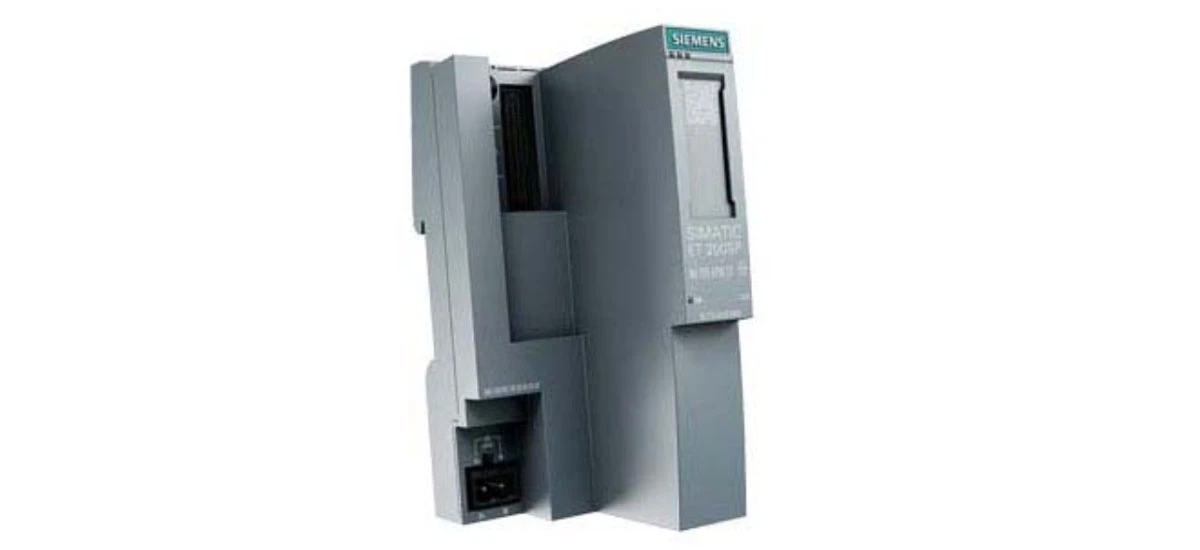
The SIMATIC 6ES7155-6AU00-0DN0 is a key part of many industrial automation systems. As a PROFINET interface module, it acts like a bridge, helping connect different devices in a network-such as sensors, actuators, and PLCs-and making sure data flows smoothly between them. This module is known for its reliability, but like any technology, it can have problems when used in tough industrial environments. In this blog, we'll look at common issues with the SIMATIC 6ES7155-6AU00-0DN0 and step-by-step ways to fix them. Whether you're new to using this module or have been working with it for a while, these tips will help you keep your automation system running well and reduce downtime.
Common Connection Problems with SIMATIC 6ES7155-6AU00-0DN0
One of the most frequent issues users face is connection problems with the SIMATIC 6ES7155-6AU00-0DN0. These issues can stop data from moving between devices, slowing down or even halting production. Let's break down the main ones and how to solve them.
Ethernet Cable Issues
A bad Ethernet cable is often the cause of connection troubles with the SIMATIC 6ES7155-6AU00-0DN0. Ethernet cables in industrial settings can get damaged from being stepped on, pulled, or exposed to oil, water, or extreme temperatures. If the cable is damaged-even a small cut in the outer layer-or not plugged in properly, the module can't connect to the network. To check, first, make sure the cable is fully inserted into both the SIMATIC 6ES7155-6AU00-0DN0's Ethernet port and the network switch. You should hear a "click" when it's properly connected. If that doesn't work, inspect the cable for visible damage like cracks, kinks, or bent pins in the connectors. If you find damage, try a different cable-preferably one rated for industrial use, as these are more durable. A new cable can often fix the SIMATIC 6ES7155-6AU00-0DN0 connection issues quickly. For extra certainty, use a cable tester to check if the cable can send data properly.
IP Address Conflict
Another common problem is an IP address conflict. Every device on a network needs a unique IP address, like a unique phone number, and the SIMATIC 6ES7155-6AU00-0DN0 is no exception. If another device-such as a computer, another PLC, or a sensor-has the same IP address as the SIMATIC 6ES7155-6AU00-0DN0, neither will connect properly. You might notice symptoms like the module appearing "offline" in TIA Portal or data not updating. To solve this, check the IP address of the SIMATIC 6ES7155-6AU00-0DN0 using software like TIA Portal: open the software, go to the "Online & Diagnostics" section, and select the module to view its current IP. Then, check the IP addresses of other devices on the network using tools like "ipconfig" (on Windows) or "arp -a" to see if any match. If there's a conflict, change the IP address of the SIMATIC 6ES7155-6AU00-0DN0 to a unique one. To do this in TIA Portal, go to the module's properties, find the "Ethernet" settings, and enter a new IP that's not being used-make sure it's in the same network range as other devices (e.g., if most devices start with 192.168.1.x, choose a number like 192.168.1.50 that's not taken).
Error Codes and Their Solutions for SIMATIC 6ES7155-6AU00-0DN0
The SIMATIC 6ES7155-6AU00-0DN0 has LED lights on its front panel that show error codes, making it easier to figure out what's wrong. Let's learn about some common ones and how to fix them.
Error Code SF (System Fault)
An SF error-shown by a red LED labeled "SF"-on the SIMATIC 6ES7155-6AU00-0DN0 means there's a system fault. This could be due to a problem with the module itself, software issues, or even external factors like extreme heat. First, check if the module is properly mounted on the DIN rail. Loose mounting can cause poor electrical connections, leading to errors. Make sure the clips on the back of the SIMATIC 6ES7155-6AU00-0DN0 are fully locked onto the rail. Next, check the software configuration in TIA Portal. Open your project, go to the module's configuration, and make sure all settings-like PROFINET device name, subnet mask, and connected modules-match the requirements of the SIMATIC 6ES7155-6AU00-0DN0. For example, if you added a new I/O module to the system but didn't update the configuration, this could trigger an SF error. If the error persists, check the module's temperature. It should operate between 0°C and 60°C (32°F and 140°F). If it's too hot, move it away from heat sources like motors or heaters, or improve ventilation. If none of these work, try restarting the module by turning off the power, waiting 30 seconds, and turning it back on-this can reset temporary glitches.
Error Code BF (Bus Fault)
A BF error-shown by a red or yellow LED labeled "BF"-indicates a bus fault, which means the SIMATIC 6ES7155-6AU00-0DN0 isn't communicating well with other devices on the PROFINET bus. This might be because of a broken bus cable, loose connections, or a problem with a connected device (like a faulty sensor). Start by checking all bus cables for damage-look for cuts, frays, or water damage. Also, check that all connectors are tight; a loose connector can cause intermittent communication. Next, check the bus termination resistors. PROFINET networks often use these resistors at the ends of the bus to reduce signal interference. If a resistor is missing or damaged, it can cause BF errors. Look for a small switch on the end devices (like the last module in the chain) and make sure it's set to "ON" to activate the resistor. Then, disconnect each device connected to the SIMATIC 6ES7155-6AU00-0DN0 one by one-wait a few seconds after each disconnection to see if the BF error goes away. If it does when a certain device is disconnected, that device might be causing the problem. You can test the faulty device by connecting it to a different port or replacing it with a known working one to confirm.
Compatibility and Firmware Issues of SIMATIC 6ES7155-6AU00-0DN0
Using the SIMATIC 6ES7155-6AU00-0DN0 with other devices or outdated firmware can lead to issues like slow communication or system crashes. Let's look at how to handle these.
Compatibility with Other SIMATIC Devices
The SIMATIC 6ES7155-6AU00-0DN0 is designed to work with other SIMATIC devices, but sometimes there are compatibility problems-especially with older models. For example, if you're using an older SIMATIC PLC like the S7-300 with an outdated firmware version, it might not communicate properly with the SIMATIC 6ES7155-6AU00-0DN0. To avoid this, check the product documentation for both the SIMATIC 6ES7155-6AU00-0DN0 and your other devices. You can find compatibility lists on the official Siemens website under the "Support" section-search for "SIMATIC 6ES7155-6AU00-0DN0 compatibility" to find the latest charts. These lists show which PLC models, I/O modules, and software versions work with the module. If your devices aren't compatible, you might need to update the firmware of the other devices (like the PLC) using TIA Portal. Alternatively, if updating isn't possible, use a different model that's listed as compatible with the SIMATIC 6ES7155-6AU00-0DN0-for example, the S7-1200 or S7-1500 PLCs are often a good match.
Firmware Update Problems
Updating the firmware of the SIMATIC 6ES7155-6AU00-0DN0 is important for better performance, security, and compatibility with new devices. But updates can sometimes go wrong, leaving the module unresponsive. To avoid this, follow these steps: first, back up your current configuration in TIA Portal-go to "Project > Archive" to save a copy, so you can restore it if the update fails. Then, make sure the power supply is stable during the update. Use a UPS (uninterruptible power supply) if there's a risk of power cuts, as a sudden loss of power can damage the module. Don't turn off the SIMATIC 6ES7155-6AU00-0DN0 or disconnect it from the network while the update is running-this can corrupt the firmware. To start the update, open TIA Portal, go to "Online > Update Firmware," select the SIMATIC 6ES7155-6AU00-0DN0, and choose the latest firmware file (downloaded from the Siemens website). Follow the on-screen instructions, and wait for the update to finish-this can take 5-10 minutes. If the update fails, don't panic: restart the module, check the firmware file is correct (make sure it's for the 6ES7155-6AU00-0DN0 model), and try again. This can often fix the issue with the SIMATIC 6ES7155-6AU00-0DN0.
Power-Related Issues of SIMATIC 6ES7155-6AU00-0DN0
Without proper power, the SIMATIC 6ES7155-6AU00-0DN0 can't function correctly. Power issues are easy to overlook but are often quick to fix.
Insufficient Power Supply
The SIMATIC 6ES7155-6AU00-0DN0 needs a steady power supply to work-usually 24V DC. If the power is too low (below 20V) or fluctuates a lot, the module might turn off, reset randomly, or show error codes like SF. To check, use a multimeter to measure the voltage at the module's power connector. Connect the multimeter's probes to the positive (+) and negative (-) terminals-make sure the reading is between 24V and 28V. If the voltage is wrong, check the power supply unit (PSU) that feeds the SIMATIC 6ES7155-6AU00-0DN0. The PSU should be rated for enough current (amps) to power the module and all connected devices. For example, if the SIMATIC 6ES7155-6AU00-0DN0 uses 0.5A and connected I/O modules use 1A, the PSU should provide at least 1.5A (plus a little extra for safety). If the PSU is overloaded, it can't provide enough voltage. Unplug non-essential devices or replace the PSU with a higher-capacity one. Also, make sure there are no other devices drawing too much power from the same supply-devices like motors or solenoids can cause voltage drops when they start. If possible, connect these high-power devices to a separate PSU to keep the SIMATIC 6ES7155-6AU00-0DN0's power stable.
Power Connector Faults
A loose or damaged power connector can also cause power issues with the SIMATIC 6ES7155-6AU00-0DN0. The connector on the module's bottom has pins that can get bent or dirty over time, especially if the module is frequently disconnected. To check, turn off the power, then gently pull the connector to see if it's loose-if it wiggles easily, it's not plugged in properly. Push it firmly until it clicks into place. Then, inspect the pins inside the connector for dirt, rust, or bends. If they're dirty, clean them with a dry cloth or a small brush-never use water or cleaning liquids. If a pin is bent, carefully straighten it with a small screwdriver (be gentle to avoid breaking it). If the connector is cracked or the pins are broken, replace it with a new one-you can buy replacement connectors from Siemens or industrial supply stores. This simple fix can often get the SIMATIC 6ES7155-6AU00-0DN0 working again. After fixing the connector, turn the power back on and check if the module's power LED (usually green) lights up-this means it's getting power.
Summary of Troubleshooting for SIMATIC 6ES7155-6AU00-0DN0
The SIMATIC 6ES7155-6AU00-0DN0 is a robust interface module, but it can encounter issues in industrial environments-from connection problems to error codes, compatibility snags, and power issues. By addressing these problems systematically, you can minimize downtime and keep your automation system running efficiently.
Start with the basics when troubleshooting: check Ethernet cables and power connections for damage or looseness, as these are common culprits. For error codes like SF or BF, use the module's LED indicators to guide your checks-verify mounting, software configurations, and bus components. When dealing with compatibility, refer to Siemens' official lists to ensure your devices work with the SIMATIC 6ES7155-6AU00-0DN0, and keep firmware updated using TIA Portal with proper precautions.
Remember, using genuine parts, official software, and following safety steps (like stable power during updates) will help maintain the SIMATIC 6ES7155-6AU00-0DN0's performance. With these strategies, you can resolve most issues quickly and keep your industrial network operating smoothly.


