


As a well - established Siemens PLC supplier, I've had the privilege of assisting numerous customers in configuring Profinet communication for their Siemens PLCs. Profinet is a powerful industrial Ethernet standard that offers high - speed, reliable communication between automation devices, which is crucial for modern industrial applications. In this blog, I'll share a step - by - step guide on how to configure Profinet communication for Siemens PLCs.
Prerequisites
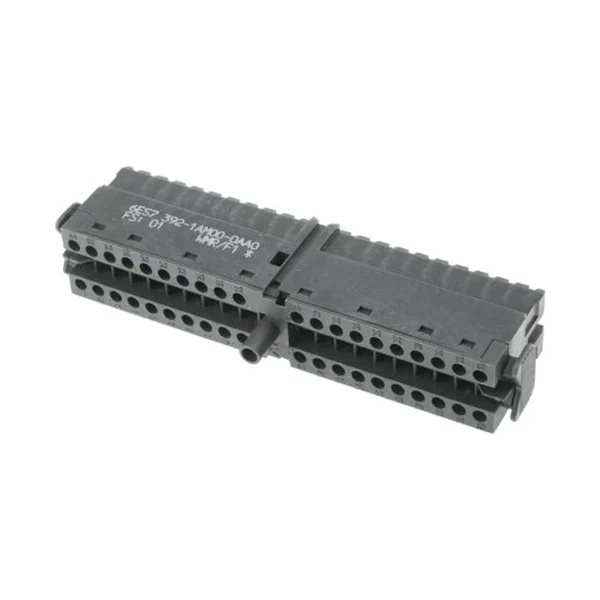
Before diving into the configuration process, there are several prerequisites you need to ensure. First, you should have a Siemens PLC that supports Profinet communication. Some popular models like SIMATIC S7 - 200 SMART CPU CR40 AC/DC, Siemens 6ED1052 - 1MD08 - 0BA2 LOGO, and 6ES7392 - 1AM00 - 0AA0 Siemens PLC are capable of Profinet communication.
Secondly, you need to have the appropriate software installed on your PC. For Siemens PLCs, the commonly used software is TIA Portal (Totally Integrated Automation Portal). This software provides a unified environment for programming, configuration, and commissioning of Siemens automation devices.
Step 1: Hardware Connection
The first step in configuring Profinet communication is to establish the hardware connection. Connect your Siemens PLC to the industrial Ethernet network using an Ethernet cable. Make sure that the network infrastructure, such as switches and routers, is properly configured and can support the Profinet protocol.
If you are using multiple PLCs or other Profinet - compatible devices, connect them in a star or linear topology. In a star topology, all devices are connected to a central switch, while in a linear topology, devices are connected in a daisy - chain manner.

Step 2: Software Installation and Project Creation
Install the TIA Portal software on your PC if you haven't already. Once the installation is complete, launch the TIA Portal.
Create a new project by clicking on "Create new project" in the start screen. Give your project a meaningful name and select the appropriate location to save it.
Step 3: PLC Configuration
In the TIA Portal, add your Siemens PLC to the project. Navigate to the "Devices and Networks" view. Right - click on the project tree and select "Add new device". From the device catalog, select your specific Siemens PLC model.
After adding the PLC, you need to configure its basic settings. This includes setting the IP address of the PLC. The IP address should be within the same subnet as the other devices on the Profinet network. You can set the IP address manually or use the automatic IP configuration feature if available.
Step 4: Profinet Interface Configuration
Locate the Profinet interface of the PLC in the device view. Double - click on the Profinet interface to open its properties.
In the properties window, you can configure various settings related to the Profinet communication. Set the device name, which should be unique on the network. You can also configure the communication speed, duplex mode, and other advanced settings according to your network requirements.
Step 5: Adding Profinet - Compatible Devices
If you have other Profinet - compatible devices, such as sensors, actuators, or other PLCs, you need to add them to the project. Navigate to the device catalog and select the appropriate devices.
Drag and drop the devices onto the network view in the TIA Portal. Connect the devices to the Profinet network by creating network connections between the PLC and the devices.
Step 6: Communication Configuration
For each device added to the project, you need to configure the communication parameters. This includes setting the input and output data areas, communication cycles, and other relevant settings.
In the device properties, specify the data exchange areas between the PLC and the device. You can define the size and type of the data to be exchanged. For example, you can exchange digital input/output signals or analog values.
Step 7: Network Topology Check
Before downloading the configuration to the PLC, it's important to check the network topology for any errors. Use the network topology check tool in the TIA Portal to verify that all devices are correctly connected and configured.
The tool will detect any network issues, such as incorrect IP addresses, duplicate device names, or communication errors. Fix any issues that are reported by the tool before proceeding.
Step 8: Downloading the Configuration
Once you have completed all the configuration steps and the network topology check is successful, you can download the configuration to the PLC.
Connect your PC to the PLC using an Ethernet cable. In the TIA Portal, click on the "Download" button to transfer the configuration from the PC to the PLC. Wait for the download process to complete.
Step 9: Testing the Profinet Communication
After downloading the configuration, it's time to test the Profinet communication. You can use diagnostic tools in the TIA Portal to monitor the communication status between the PLC and other devices.
Check the input and output data values to ensure that the data is being exchanged correctly. If there are any issues, review the configuration settings and troubleshoot the problem.
Troubleshooting
Even with careful configuration, you may encounter some issues during the Profinet communication setup. Here are some common problems and their solutions:
- Communication failures: Check the network connections, IP addresses, and device names. Make sure that all devices are powered on and properly connected to the network.
- Data exchange errors: Verify the data exchange areas and communication cycles. Check if the data types and sizes are compatible between the PLC and the devices.
- Network congestion: If you experience slow communication or packet loss, check the network bandwidth and the number of devices on the network. Consider upgrading the network infrastructure if necessary.
Conclusion
Configuring Profinet communication for Siemens PLCs requires a systematic approach, from hardware connection to software configuration and testing. By following the steps outlined in this blog, you can successfully set up Profinet communication for your Siemens PLCs and ensure reliable data exchange between devices.
If you are interested in purchasing Siemens PLCs or need further assistance with Profinet configuration, feel free to reach out to us. We are here to provide you with high - quality products and professional technical support.
References
- Siemens TIA Portal User Manual
- Profinet International Technical Documentation


