


As a dedicated Siemens HMI supplier, I've encountered a wide range of issues with these high - end human - machine interfaces. In this blog, I'll share some effective methods on how to diagnose a faulty Siemens HMI.
1. Initial Visual Inspection
The first step in diagnosing a Siemens HMI is a thorough visual inspection. This simple yet crucial process can often reveal obvious signs of damage or malfunction.
- Physical Damage: Check the HMI unit for any visible cracks, dents, or scratches on the screen or the casing. Physical damage can not only affect the aesthetic appearance but also cause internal components to malfunction. For example, a cracked screen may lead to touch - sensitivity issues or display problems.
- Loose Connections: Examine all the cables and connectors. Ensure that the power cable is securely plugged in, and there are no loose or frayed wires. Loose connections can result in intermittent power supply or data transfer problems. In some cases, a loose Ethernet cable may prevent the HMI from communicating with the connected PLC or other devices.
- Display Issues: Look closely at the display. Are there any dead pixels, color distortions, or flickering? Dead pixels appear as small, unresponsive dots on the screen, while color distortions can make the display look washed out or have incorrect hues. Flickering may indicate a problem with the backlight or the display driver.
2. Power - Related Checks
Proper power supply is essential for the normal operation of a Siemens HMI.

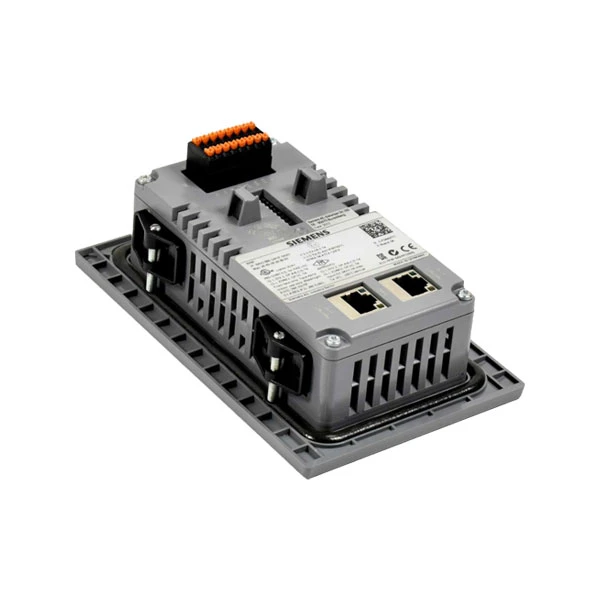
- Power Supply Verification: Use a multimeter to measure the voltage at the power input of the HMI. Compare the measured voltage with the specified voltage range in the HMI's manual. For example, if the HMI is designed to operate at 24V DC, the measured voltage should be within an acceptable tolerance, typically around 22 - 26V DC. If the voltage is too low or too high, it can cause the HMI to malfunction or even damage its internal components.
- Power Adapter Inspection: If the HMI uses a power adapter, check the adapter for any signs of overheating, burning, or damage. A faulty power adapter may not provide a stable power output, leading to power - related issues. You can also try using a different power adapter (of the same specifications) to see if the problem persists.
3. Software and Firmware Checks
The software and firmware running on the Siemens HMI play a vital role in its functionality.
- Firmware Version: Check the current firmware version of the HMI. Outdated firmware may have bugs or compatibility issues with other devices in the system. You can usually find the firmware version in the HMI's system settings. If an updated firmware is available, follow the manufacturer's instructions to upgrade the firmware. However, make sure to back up all the important data and configurations before performing the upgrade.
- Software Configuration: Review the software configuration of the HMI. Ensure that all the communication settings, such as IP addresses, subnet masks, and gateway settings, are correct. Incorrect configuration can prevent the HMI from communicating with other devices in the network. For example, if the IP address of the HMI is not in the same subnet as the connected PLC, data transfer between them will be impossible.
4. Communication Checks
Siemens HMIs often need to communicate with other devices, such as PLCs, to function properly.
- Network Connectivity: If the HMI is connected to a network, check the network connectivity. You can use the ping command to test the connection between the HMI and other devices on the network. For example, if the HMI is supposed to communicate with a PLC at a specific IP address, open the command prompt on a connected computer and type "ping [PLC IP address]". If the ping fails, there may be a problem with the network cable, the network switch, or the IP configuration.
- Communication Protocols: Ensure that the correct communication protocols are being used. Siemens HMIs support various communication protocols, such as Profibus, Profinet, and Modbus. Make sure that the HMI and the connected devices are configured to use the same protocol and that the protocol settings (such as baud rate, parity, and data bits for serial communication) are correct.
5. Touch - Screen Functionality Checks
For HMIs with touch - screen capabilities, the touch - screen functionality is a critical aspect.
- Calibration: If the touch - screen seems unresponsive or the touch points are not accurate, try calibrating the touch - screen. Most Siemens HMIs have a built - in touch - screen calibration function. Follow the on - screen instructions to perform the calibration process. This can usually correct minor touch - sensitivity issues.
- Touch - Screen Hardware: If calibration does not solve the problem, there may be an issue with the touch - screen hardware. Check for any visible damage to the touch - screen surface or the touch - screen controller. In some cases, a damaged touch - screen controller may need to be replaced.
Specific Model Considerations
When diagnosing a faulty Siemens HMI, it's also important to consider the specific model. For example, the Siemens 6AV2124 - 1GC01 - 0AX0 may have unique features and potential issues. This model is known for its high - resolution display and advanced communication capabilities. If you encounter problems with its display or communication, the diagnosis steps mentioned above can be applied, but you may also need to refer to the specific documentation for this model.
The SIMATIC HMI KTP700 is another popular model. It is often used in industrial automation applications. When diagnosing this model, pay special attention to its communication with the connected PLC, as it is a key part of its functionality.
The Siemens 6AV3688 - 3AY36 - 0AX0 has its own set of characteristics. Check its power requirements and communication settings carefully, as any deviation from the specifications can lead to malfunctions.
Conclusion
Diagnosing a faulty Siemens HMI requires a systematic approach. By performing visual inspections, power - related checks, software and firmware checks, communication checks, and touch - screen functionality checks, you can often identify the root cause of the problem. If you are still unable to diagnose or fix the issue, don't hesitate to reach out to us. As a reliable Siemens HMI supplier, we have a team of experts who can provide you with professional advice and support. Whether you need help with diagnosis, repair, or procurement of a new HMI, we are here to assist you. Contact us for further discussions on your specific requirements and let's work together to ensure the smooth operation of your industrial automation systems.
References
- Siemens HMI User Manuals
- Industrial Automation Technical Guides on Siemens HMIs


