


Hey there! As a Siemens HMI supplier, I've seen firsthand how important it is to have top - notch display quality on these devices. Whether you're using HMIs in industrial automation, manufacturing, or any other field, a clear and sharp display can make a huge difference in efficiency and accuracy. So, let's dive into some tips on how to improve the display quality of Siemens HMI.
1. Choose the Right Model
First things first, picking the right Siemens HMI model is crucial. Different models come with different display capabilities. For instance, the SIMATIC HMI KTP700 Mobile is a great option for those who need a mobile and flexible solution. It offers a decent screen size and high - resolution display, which is ideal for on - the - go monitoring and control.
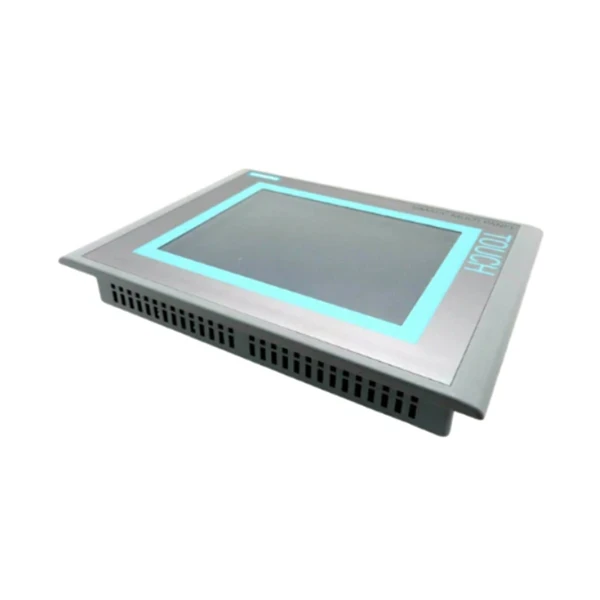
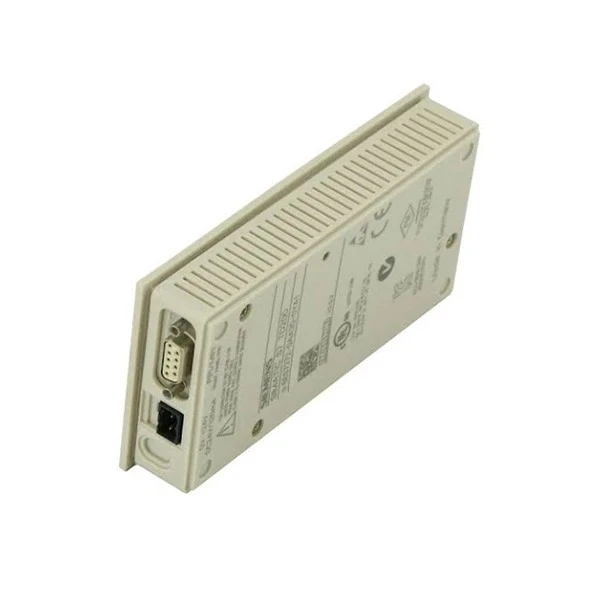
On the other hand, if you're looking for a more powerful and feature - rich HMI, the Siemens 6AV6 643 - 0CB01 - 1AX1 SIMATIC MP 277 might be the way to go. It has a larger screen and advanced graphics processing capabilities, allowing for more detailed and complex visualizations. And for basic control and display needs, the Siemens SIMATIC HMI TD 200 is a cost - effective choice that still provides a clear and easy - to - read display.
2. Adjust Display Settings
Once you've got the right HMI model, it's time to play around with the display settings. Most Siemens HMIs come with a range of adjustable settings that can significantly impact the display quality.
Brightness
The brightness setting is one of the most important. In a well - lit environment, you might want to increase the brightness to make the screen more visible. But in a dimly lit area, too much brightness can be uncomfortable and even cause eye strain. So, find the sweet spot that works best for your specific working conditions.
Contrast
Contrast is another key factor. A good contrast ratio ensures that the text and graphics on the screen are clear and easy to distinguish. If the contrast is too low, everything might look washed out. If it's too high, the blacks might become too dark, and details could be lost. Experiment with different contrast levels until you achieve the optimal balance.
Color Temperature
Color temperature affects the overall color appearance of the display. A cooler color temperature (higher Kelvin value) makes the colors look more blue - white, while a warmer color temperature (lower Kelvin value) gives a more yellow - red tint. You can adjust the color temperature according to your personal preference or the requirements of your application. For example, in a medical or graphic design application, a more accurate color representation might be needed, so you might want to set the color temperature to a neutral value.
3. Keep the Screen Clean
A dirty screen can seriously degrade the display quality. Dust, fingerprints, and smudges can all make the screen look hazy and reduce visibility. So, it's important to keep the screen clean on a regular basis.
Use a soft, lint - free cloth to wipe the screen. Avoid using abrasive materials or harsh chemicals, as these can scratch or damage the screen. You can also use a specialized screen cleaner if necessary, but make sure it's compatible with the type of screen on your Siemens HMI.
4. Update Firmware Regularly
Siemens often releases firmware updates for their HMIs. These updates not only fix bugs and security issues but can also improve the display performance.
Firmware updates might include optimizations for graphics rendering, better support for high - resolution displays, and enhancements to color accuracy. By keeping your HMI's firmware up - to - date, you can ensure that you're getting the best possible display quality.
5. Proper Installation and Mounting
How you install and mount the Siemens HMI can also affect the display quality.
Angle
Make sure the HMI is mounted at an appropriate angle. If it's tilted too far up or down, or to the side, you might experience glare or reflections, which can make the screen difficult to read. Mount the HMI at an angle that allows for a comfortable viewing position.
Vibration and Shock
Avoid mounting the HMI in an area where it will be exposed to excessive vibration or shock. Vibration can cause the display to flicker or become distorted over time. If necessary, use vibration - damping mounts to protect the HMI from these issues.
6. Use High - Quality Cables
The cables that connect the HMI to other devices can also have an impact on the display quality. Low - quality cables might introduce signal interference, which can result in a fuzzy or distorted display.
Use high - quality cables that are specifically designed for the type of connection required by your Siemens HMI. For example, if you're using an HDMI connection, make sure the HDMI cable is of good quality and has the appropriate length. Longer cables can sometimes cause signal degradation, so try to keep the cable length as short as possible without sacrificing functionality.
7. Optimize Graphics and Images
If you're using custom graphics or images on the HMI, it's important to optimize them for the display.
Resolution
Use images with the appropriate resolution for the HMI's screen. If the image resolution is too low, it will look pixelated when displayed on a high - resolution screen. On the other hand, using extremely high - resolution images can slow down the HMI's performance. So, find the right balance.
Compression
Compressing the images can also help improve the performance. However, be careful not to over - compress, as this can also lead to a loss of image quality. There are many image editing tools available that can help you compress images while maintaining an acceptable level of quality.
8. Provide Adequate Power Supply
A stable and adequate power supply is essential for the proper functioning of the HMI, including the display.
Fluctuations in the power supply can cause the display to flicker or behave erratically. Make sure the power supply to the HMI is clean and within the specified voltage range. You might also consider using a UPS (Uninterruptible Power Supply) to protect the HMI from power outages and sudden voltage spikes.
Conclusion
Improving the display quality of Siemens HMI is a multi - faceted process that involves choosing the right model, adjusting settings, keeping the screen clean, updating firmware, proper installation, using high - quality cables, optimizing graphics, and providing a stable power supply. By following these tips, you can ensure that your Siemens HMI provides a clear, sharp, and reliable display, which is essential for efficient operation in any application.
If you're interested in purchasing Siemens HMIs or need more advice on improving the display quality, don't hesitate to reach out for a procurement discussion. We're here to help you get the most out of your Siemens HMI investment.
References
- Siemens official documentation
- Industry - specific research on HMI display optimization


