


In today's fast - paced industrial environment, the ability to access Human - Machine Interfaces (HMIs) on mobile devices has become a necessity. As a reliable Mitsubishi HMI supplier, I understand the importance of providing solutions that allow users to interact with their HMIs from anywhere, at any time. In this blog, I'll share some effective ways to make Mitsubishi HMIs accessible on mobile devices.
Understanding Mitsubishi HMIs
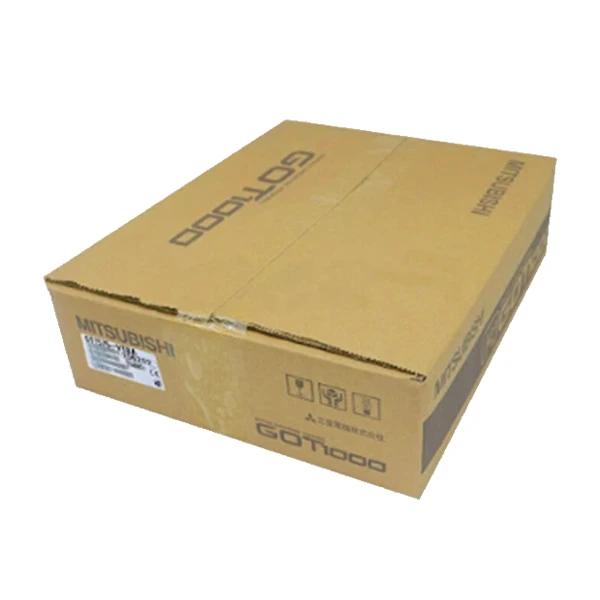
Mitsubishi offers a wide range of HMIs, each with its own unique features and capabilities. For example, the Mitsubishi GT1575 - VTBA is a high - performance HMI with a large display and advanced communication functions. It provides excellent visibility and user - friendly operation, making it suitable for complex industrial applications. The Mitsubishi Gs2110 - Wtbd Touch Screen is another popular model, known for its compact size and cost - effectiveness. It is ideal for small - to - medium - sized industrial systems. And the Mitsubishi GT2512 - STBD HMI offers high - resolution graphics and a wide range of connectivity options, ensuring seamless integration with various industrial devices.
Prerequisites for Mobile Access
Before making your Mitsubishi HMI accessible on mobile devices, there are several prerequisites that need to be met.
Network Connectivity
First and foremost, your HMI must be connected to a stable network. This can be either a local area network (LAN) or a wide area network (WAN). Ensure that the network has sufficient bandwidth to support the data transfer between the HMI and the mobile device. If you are using a wireless network, make sure it is secure and has a strong signal.
HMI Configuration
The HMI needs to be properly configured to enable remote access. You should set up the appropriate communication protocols, such as Ethernet/IP or Modbus TCP. In addition, you need to configure the security settings to protect your HMI from unauthorized access. This may include setting up user accounts, passwords, and access permissions.

Mobile Device Compatibility
Your mobile device should support the necessary software and protocols to connect to the HMI. Most modern smartphones and tablets support web - based access, which is a common way to connect to Mitsubishi HMIs. Make sure your device has a compatible web browser, such as Chrome, Safari, or Firefox.
Methods to Make Mitsubishi HMIs Accessible on Mobile Devices
Web - Based Access
One of the simplest and most common ways to access a Mitsubishi HMI on a mobile device is through web - based access. Many Mitsubishi HMIs support web servers, which allow you to access the HMI's interface through a web browser on your mobile device.
To set up web - based access, you first need to enable the web server function on your HMI. This can usually be done through the HMI's configuration software. Once the web server is enabled, you can obtain the IP address of the HMI. On your mobile device, open a web browser and enter the IP address of the HMI in the address bar. You may need to enter your username and password if security settings are enabled. After successful authentication, you will be able to view and control the HMI's interface on your mobile device.
The advantage of web - based access is its simplicity and universality. It does not require the installation of additional software on the mobile device, as long as the device has a web browser. However, the performance may be affected by the network speed and the complexity of the HMI interface.
Mobile Applications
Some Mitsubishi HMIs support dedicated mobile applications. These applications are specifically designed to provide a better user experience on mobile devices. They often offer features such as real - time data monitoring, alarm notifications, and remote control.
To use a mobile application, you need to download and install it from the appropriate app store (such as the Apple App Store or Google Play). After installation, you need to configure the application to connect to your HMI. This usually involves entering the IP address or other connection information of the HMI. Once connected, you can use the application to interact with the HMI.
The advantage of using a mobile application is its enhanced functionality and better user experience. It can provide a more intuitive and user - friendly interface compared to web - based access. However, you need to ensure that the application is compatible with your HMI model and mobile device.
VPN (Virtual Private Network)
A VPN can be used to create a secure connection between your mobile device and the HMI. By using a VPN, you can access the HMI as if you were directly connected to the same local network.
To set up a VPN connection, you first need to configure a VPN server on your network. This can be a hardware - based VPN device or a software - based VPN solution. On your mobile device, you need to install a VPN client application. After installation, configure the VPN client to connect to the VPN server. Once connected to the VPN, you can access the HMI using the same methods as if you were on the local network, such as web - based access or using a mobile application.
The advantage of using a VPN is its high level of security. It encrypts the data transfer between your mobile device and the HMI, protecting your industrial systems from potential cyber threats. However, setting up a VPN can be more complex and may require technical expertise.
Troubleshooting Common Issues
When trying to access a Mitsubishi HMI on a mobile device, you may encounter some common issues. Here are some troubleshooting tips:
Connection Problems
If you are unable to connect to the HMI, first check the network connection. Make sure that both the HMI and the mobile device are connected to the same network. Check the IP address settings of the HMI and the mobile device to ensure they are correct. If you are using a VPN, check the VPN connection status.
Security Issues
If you are getting authentication errors, make sure you are entering the correct username and password. Check the security settings on the HMI to ensure that your user account has the appropriate access permissions. If you suspect a security breach, review the security logs on the HMI and take appropriate measures to secure your system.
Performance Issues
If the performance of the HMI on your mobile device is slow, check the network speed. You may need to upgrade your network or reduce the load on the network. In addition, optimize the HMI interface to reduce the amount of data being transferred.
Conclusion
Making Mitsubishi HMIs accessible on mobile devices offers numerous benefits, including increased productivity, improved efficiency, and better decision - making. By following the methods and tips outlined in this blog, you can easily set up mobile access to your Mitsubishi HMI. Whether you choose web - based access, mobile applications, or a VPN, ensure that you meet the prerequisites and troubleshoot any issues that may arise.
As a Mitsubishi HMI supplier, I am committed to providing you with the best solutions and support. If you are interested in purchasing Mitsubishi HMIs or need further assistance with mobile access, please feel free to contact me. I will be happy to discuss your requirements and help you find the most suitable solution for your industrial needs.
References
- Mitsubishi Electric Automation, Inc. Product manuals for Mitsubishi GT1575 - VTBA, Mitsubishi Gs2110 - Wtbd Touch Screen, and Mitsubishi GT2512 - STBD HMI.
- Industrial networking and communication standards, such as Ethernet/IP and Modbus TCP.
- Mobile device operating system documentation for Android and iOS.


