


Hey there! As a supplier of Mitsubishi PLCs, I've seen my fair share of troubleshooting scenarios over the years. Mitsubishi PLCs are top - notch and super reliable, but like any piece of tech, they can run into issues from time to time. In this blog, I'm gonna share some tips on how to troubleshoot a Mitsubishi PLC.
First off, the basics
Let's start with the most fundamental part - the power supply. A lot of times, when there's something wrong with the PLC, it could just be a power problem. Check if the PLC is properly connected to a power source. Make sure the power cable isn't damaged or loose. It's also a good idea to use a multimeter to test the voltage supplied to the PLC. If it's significantly different from the recommended voltage, that could be the root cause.
For instance, if you're using a Mitsubishi FX3U - 32DP, the power requirements are clearly specified in the user manual. If the voltage is too low, the PLC might not function correctly, or it could even shut down unexpectedly.
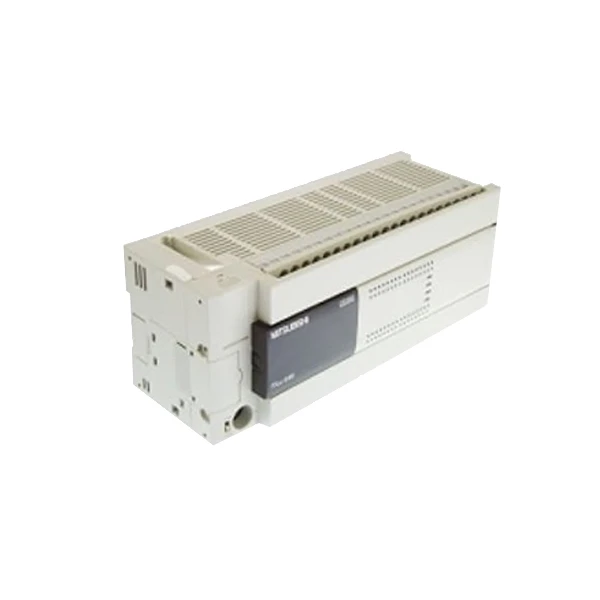

Communication issues
Another common headache is communication problems. Your PLC needs to talk to other devices in the system, like HMIs or other sensors. If you're having trouble getting data in or out of the PLC, the first thing to do is check the communication cables. I've lost count of how many times a loose or faulty cable has been the culprit.
Inspect the connectors for any signs of corrosion or damage. Also, make sure the communication settings in the PLC and the connected devices match. In Mitsubishi PLCs, you can configure communication ports for things like RS - 232, RS - 485, or Ethernet. So, double - check the baud rate, parity, and other communication parameters.
Let's say you're using the FX5S 30MT ES. It has multiple communication options. If you're using Ethernet, ensure that the IP address settings are correct, and the network switch is working properly.
Input and output problems
The inputs and outputs are like the eyes and hands of the PLC. They send and receive signals from the real - world environment. When you notice that a particular input or output isn't functioning as it should, the first step is to check the physical connections.
For inputs, verify that the sensors are properly connected and are sending the correct signals. You can use a logic probe or a multimeter to measure the voltage or current at the input terminals. If an input doesn't seem to be registering a change when it should, it could be a faulty sensor or a problem with the wiring.
On the output side, check if the connected load is getting power. If an output relay isn't switching correctly, it could be due to a blown fuse in the output circuit or a damaged relay. For example, in the Fx3u 64mt Dss, the outputs have specific ratings. Make sure the loads you're connecting don't exceed these ratings.
Program errors
Sometimes, the problem isn't with the hardware at all but with the program running on the PLC. A simple programming mistake can cause all sorts of unexpected behavior.
Start by checking the program logic. Look for any obvious errors like incorrect use of instructions or wrong addresses. Mitsubishi PLCs come with programming software that has debugging tools. You can use these tools to step through the program and see what's happening at each step.
Set breakpoints in the program to pause its execution at specific points. This way, you can check the values of variables and see if they're what you expect them to be. If you're relatively new to programming Mitsubishi PLCs, it's a good idea to review the programming manual and examples to make sure you're following the best practices.
Diagnostic LEDs
Mitsubishi PLCs are equipped with diagnostic LEDs that can give you a lot of clues about what's going wrong. These LEDs are usually located on the front panel of the PLC.
For example, there might be an LED that indicates a power - on fault, a communication error, or a program error. Refer to the user manual to understand what each LED means. If an LED is lit up, you can focus your troubleshooting efforts on that particular area.
Firmware and software updates
Outdated firmware or programming software can also cause problems. Mitsubishi regularly releases updates to fix bugs, improve performance, and add new features.
Check the Mitsubishi official website to see if there are any available updates for your specific PLC model. Before updating the firmware, make sure you have a backup of your existing program. Follow the update instructions carefully to avoid any issues.
Documentation and support
Don't forget about the power of documentation. The user manuals, programming guides, and technical bulletins that come with Mitsubishi PLCs are goldmines of information. Whenever you run into a problem, start by looking through the relevant documentation.
If you're still stuck after trying all the above steps, Mitsubishi offers technical support. You can reach out to their support team with detailed information about the problem, including the symptoms, any error messages, and what you've already tried.
Conclusion
Troubleshooting a Mitsubishi PLC might seem daunting at first, but if you follow a systematic approach, you can usually figure out what's going wrong. Start with the basics like power supply and communication, then move on to inputs, outputs, and the program itself. Use the diagnostic LEDs and keep your firmware up - to - date.
If you're in the market for Mitsubishi PLCs or need any assistance with troubleshooting, feel free to reach out. We're here to help you get the most out of your Mitsubishi PLCs and keep your systems running smoothly. Whether you need a Mitsubishi FX3U - 32DP, FX5S 30MT ES, or Fx3u 64mt Dss, we've got you covered. Contact us for a quote and let's start a great partnership!
References
- Mitsubishi PLC User Manuals
- Mitsubishi Programming Guides
- Mitsubishi Technical Bulletins


