


Hey everyone, I’m Jake, been selling Allen-Bradley PLCs for over 10 years now, and let me tell you—communication issues are the number one headache folks hit with these systems. I’ve seen everything from a whole production line grinding to a halt because a module dropped comms, to a small setup where a single loose cable made a team stay late troubleshooting till 2 a.m. The good news? Most of these problems aren’t rocket science, and if you follow a step-by-step breakdown, you can fix ’em fast and get your line back running. As someone who sources and supports these units regularly, I know the ins and outs of common pitfalls, so let’s walk through how to troubleshoot communication problems with Allen-Bradley PLCs, no fancy jargon required.
First off, let’s get on the same page: when we talk comms issues here, we’re not just talking about “it won’t talk to the computer.” We mean things like the PLC not picking up input signals from sensors, outputs not firing when they should, the HMI not updating, or the system throwing weird error codes like “comm fault” or “module offline” on the controller. These issues can crop up for new setups (like when a company installs a 1756-L62 controller for the first time) or old systems that’ve run fine for years out of the blue. Either way, start with the simplest stuff first—don’t overcomplicate it right away. I always tell my clients: 90% of the time, the fix is something you could’ve checked in 5 minutes, not a deep dive into ladder logic.
Let’s start with the basics: power and physical connections. I swear by this step first because I’ve seen so many people skip it. Comms don’t work if there’s no power, duh, but I’m not talking about just flipping the breaker. For example, if you’ve got a 1756-PA72 power supply (super common for ControlLogix systems), it has two lights: a “power good” LED and a “fault” LED. If the power good is off, first check the circuit breaker feeding the supply—sometimes it trips just from a fluctuation. If the breaker is fine, unplug the supply’s main wires and check for frayed ends or loose terminals; I’ve had a few clients where a tiny wire that worked for months came loose from the terminal block. For remote I/O like the Flex I/O line, connections are even more finicky because they’re spread out. A 1746-IB32 input module or 1794-OE12 analog output module both use RJ45 or screw-terminal connections for comms with the backplane or network. I always pop open the module’s cover and wiggle each wire—loose screw terminals are way more common than you think, especially in industrial settings where vibration is nonstop. Also, check for corrosion on the connectors; if the cabinet is dusty or humid, that can build up over time and block the signal. A quick spray of electrical contact cleaner (make sure it’s the right kind for industrial use) usually fixes that.
Next up: LED status lights. Allen-Bradley modules and controllers have these little LEDs that are basically your first diagnostic tool, and most people don’t know what they actually mean. Let’s break down the key ones you’ll see on the most common units. For the 1756-L62 controller, the “Status” LED: if it’s solid green, you’re good. Blinking amber means it’s in program mode or waiting for a connection, and solid red means a major fault (which could be a comm fault). For SLC 500 systems, the 1746-IB32 input module has a “Comm” LED—if that’s off when it should be on, that means the module isn’t talking to the backplane. Same with the 1746-OB32 output module; a dead Comm LED here means no signal from the controller. Pro tip: if the LED is blinking randomly, that’s usually a sign of intermittent communication, not a total failure, so you can narrow it down to a loose connection or a bad cable. I once had a client with a whole line down because a single Ethernet cable to their 1794-OE12 module had a frayed internal wire— the LED was blinking weird, so we swapped the cable and fixed it in 2 minutes. Don’t ignore those tiny lights; they tell you exactly where to look.
Once you’ve checked power and physical connections, it’s time to verify the network and module addressing. This is where new setups often mess up, but old systems can too if someone modifies a module without updating the address. Allen-Bradley PLCs use different network types, right? Ethernet/IP is the most common now, but you might still see DeviceNet or ControlNet on older lines. For Ethernet/IP, you’ll need to make sure each module has a unique IP address that’s in the same subnet as the controller. If you’re using Studio 5000 software (the go-to for Allen-Bradley), open the I/O Configuration tree and check for “unconfigured” or “faulted” modules. If your 1746-IB32 is showing as unconfigured, that means its IP doesn’t match what’s in the software. I’ve seen this happen when techs swap out a module and use the default IP instead of setting it to match the program. Another thing: network switches. If you have multiple modules on one switch, a bad switch port can kill comms. Try plugging the module’s cable into a different port on the switch—if the LED lights up, that port was bad, not the module. For backplane addressing (like SLC 500 or MicroLogix), each module has a rotary switch for its address. Double-check that number against the ladder logic or configuration software; I had a client where a new 1756-L62 controller was talking to a 1746-OB32 set to address 5, but the software had it set to 6. Swinging the rotary switch fixed that right away.
Wait, what about when you get a communication fault error in the software? Let’s talk about troubleshooting that specific error code because Allen-Bradley’s error codes are actually pretty helpful. If you’re getting a “Comm Fault” or “Module Comm Error” in Studio 5000, first check the controller’s event log. That log will tell you exactly which module is failing to communicate and what type of fault it is—like “loss of frame” which means a bad cable, or “address conflict” which is two modules with the same IP. Another quick check: ping the module from your laptop or HMI. If you can’t ping the 1794-OE12 module, that means there’s a network issue between your laptop and the module, not a problem with the module itself. If you can ping it but the software still shows a fault, that’s a configuration mismatch in the software, so you’ll need to match the address, data type, or rack number. I’ve had so many clients skip the ping step and waste hours replacing a module when it was just a wrong setting in the software—don’t do that.
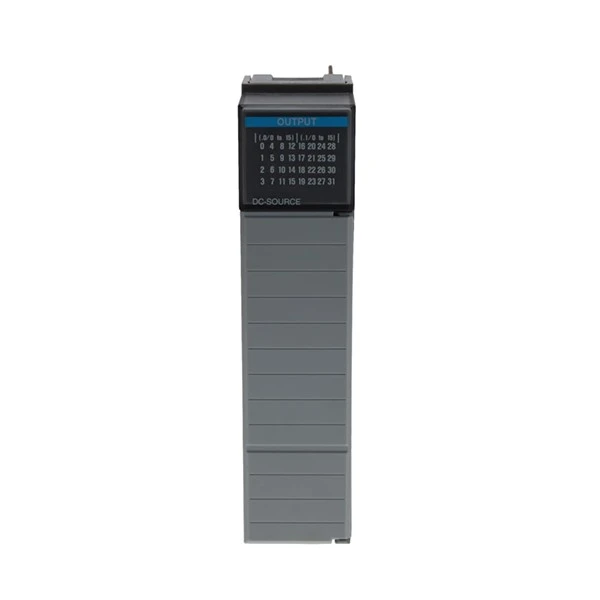

Now, let’s get to the less common but still fixable issues, because sometimes it’s not the obvious stuff. For example, module firmware. If you just installed a new module like a 1756-L62, make sure its firmware version matches the controller’s firmware. Allen-Bradley pushes updates all the time, and old firmware can cause communication gaps. I always tell my clients to check Rockwell Automation’s website for compatible firmware versions before installing a new module; mismatched firmware is one of the top hidden issues. Another thing: interference. Industrial settings are full of noise—Welders, VFDs, even other PLCs can mess with Ethernet or backplane comms. If you’re in a noisy environment, make sure you’re using shielded Ethernet cable, not unshielded. I once had a food processing plant where their 1746-IB32 module kept dropping comms every time the conveyor’s VFD turned on. Turns out the unshielded cable was running next to the VFD power cable—swapping to shielded Ethernet and grounding the shield fixed it immediately. Don’t overlook electrical noise; it’s a silent killer of comms in factories.
What about when you’ve replaced a module and comms still don’t work? Let’s say you swapped out a bad 1746-OB32 output module, but the controller still shows it as faulted. First, check the backplane slot. Sometimes the backplane connector on the slot is dirty or broken, so even a good module won’t work. Carefully take the module out, check the pins on the backplane for bent or corroded pins, and clean them gently with isopropyl alcohol if needed. Another thing: rack power. If it’s a ControlLogix rack, the 1756-PA72 power supply has enough amps for up to a certain number of modules, so if you added a new module that draws too much power, that could cause intermittent comms. Check the power supply’s rating against the module’s current draw specs—overpowering the supply is a common issue when expanding a system without planning ahead.
Now, let’s talk about a quick checklist you can keep in your control cabinet for when you hit comms issues. Print this out and keep it taped to the door: 1) Check power supply LEDs (confirm power good), 2) Wiggle all physical connections (wires, cables, module slots), 3) Check module status LEDs (Comm LED should be on solid if working), 4) Ping the module from a laptop if it’s Ethernet, 5) Verify IP/backplane addressing matches the software, 6) Confirm firmware versions are compatible, 7) Check for electrical noise (is the cable running next to a power line?). This checklist has saved me and my clients so much time—no more guessing, just step-by-step.
As someone who’s been in the Allen-Bradley PLC space for years, I know that communication problems can be frustrating, but they’re almost always solvable with a logical, methodical approach. If you’re in the market for replacement modules, controllers, or power supplies, or you need help troubleshooting a persistent comms issue, reach out to our team. We’ve got all the common parts—from 1746-IB32 input modules to 1756-L62 controllers—and we know these systems inside and out to help you get your operations back up and running fast. Don’t let comms issues bring your line to a halt—we’re here to help with whatever you need.
References:
- Rockwell Automation. Allen-Bradley 1746-IB32 Datasheet
- Rockwell Automation. Allen-Bradley 1756-L62 Controller User Manual
- Rockwell Automation. Studio 5000 I/O Configuration Guide
- Allen-Bradley Industrial Control System Troubleshooting Handbook, 2022 Edition
- Ethernet/IP Communication Best Practices for Industrial Environments, Rockwell Automation Technical Note


