


Hey there! As a supplier of Mitsubishi PLCs, I've gotten tons of questions about upgrading to the latest version of Mitsubishi PLC software. It can seem like a daunting task, but don't worry—I'm here to break it down for you in a super easy - peasy way.
First things first, why should you even bother upgrading the software? Well, the latest versions usually come with bug fixes. Bugs can cause all sorts of headaches, like unexpected system shutdowns or inaccurate data readings. Upgrading also gives you access to new features. Maybe there's a new function that can streamline your production process or improve the efficiency of your automation system. And let's not forget about security. With the increasing threats in the digital world, having the latest software version ensures that your PLC is protected against the latest cyber - attacks.
Step 1: Check Compatibility
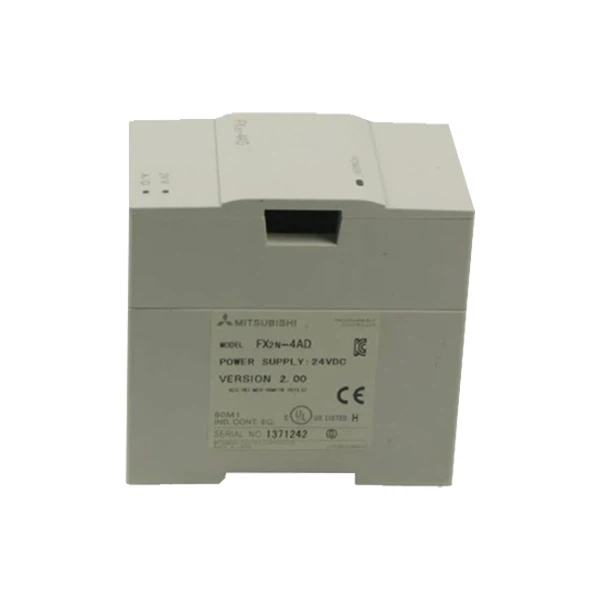
Before you go all guns blazing and start the upgrade process, you need to make sure that your PLC model is compatible with the latest software version. Mitsubishi has a wide range of PLC models, like the Mitsubishi FX3U - 32DP, Mitsubishi Fx2n 4ad, and Mitsubishi FX3S 30MR ES. Each model has its own set of requirements and limitations.
You can usually find the compatibility information on Mitsubishi's official website. Just head over there, search for your specific PLC model, and look for the software compatibility section. If you're still not sure, you can always reach out to Mitsubishi's customer support. They're pretty helpful and can give you the exact details you need.
Step 2: Backup Your Existing Program
Once you've confirmed that your PLC can handle the new software, it's time to back up your existing program. This is crucial because if something goes wrong during the upgrade, you don't want to lose all your hard - work.
To back up your program, you'll need to connect your PLC to a computer using the appropriate cable. Then, open the current software version installed on your computer and establish a connection with the PLC. Most Mitsubishi PLC software has a built - in backup function. Look for an option like "Save Program" or "Backup" in the menu. Select it, choose a location on your computer to save the backup file, and hit enter. Make sure to double - check that the backup was successful by opening the saved file and verifying that all the program details are intact.
Step 3: Download the Latest Software
Now that your program is safely backed up, it's time to get the latest software. Go to Mitsubishi's official website again. Navigate to the software download section. You'll need to provide some information about your PLC model, like the model number and the current software version you're using.
Once you've filled in the necessary details, the website will show you the available software versions for your PLC. Choose the latest one and click the download button. Depending on your internet speed, the download might take a few minutes to an hour. While you're waiting, it's a good idea to clear up some space on your computer if it's running a bit low. You don't want any interruptions during the installation process.
Step 4: Install the New Software
After the download is complete, locate the downloaded file on your computer. It's usually in your "Downloads" folder. Double - click on the file to start the installation wizard.
Follow the on - screen instructions carefully. The wizard will ask you to accept the license agreement, choose the installation location, and other settings. Make sure to read everything before you click "Next." If you're not sure about something, don't hesitate to do a quick Google search or refer to the installation guide provided on Mitsubishi's website.
Once the installation is finished, restart your computer. This will ensure that all the changes take effect properly.
Step 5: Update Your PLC
Now comes the part where you actually update your PLC with the new software. Connect your PLC to the computer again using the cable. Open the newly installed software and establish a connection with the PLC.
In the software, look for an option like "Update PLC" or "Firmware Update." Click on it, and the software will start communicating with the PLC to check for the current firmware version. Once it's identified the current version, it will prompt you to start the update process. Click "Yes" or "Start Update."
The update might take a few minutes. During this time, don't touch the PLC or disconnect the cable. If you do, it could cause the update to fail, and you might end up with a non - functioning PLC. Wait patiently until the update is complete. The software will usually display a message when it's done.
Step 6: Test Your PLC
After the update is finished, it's time to test your PLC. Re - upload your backed - up program to the PLC. Make sure all the connections are still in place and then power on the PLC.
Check if all the functions are working as expected. You can do some simple tests, like turning on and off some output devices or reading input signals. If you notice any issues, don't panic. It could be a minor glitch that can be easily fixed. Refer to the troubleshooting section in the software manual or reach out to Mitsubishi's support team for help.
Troubleshooting Tips
Even if you follow all the steps correctly, you might still run into some problems. Here are some common issues and how to fix them:
-
Connection Problems: If the software can't establish a connection with the PLC, check the cable. Make sure it's properly plugged in and not damaged. You can also try using a different cable or port on your computer.
-
Update Errors: If the update fails, it could be due to a power outage during the process or a compatibility issue that you missed. Try restarting both the PLC and the computer, and then attempt the update again. If the problem persists, contact Mitsubishi support.
-
Functionality Issues: If some functions aren't working after the update, it could be because the new software has different settings. Refer to the software manual to see if there are any changes you need to make to your program.
Wrapping Up
Upgrading to the latest version of Mitsubishi PLC software might seem like a long and complicated process, but if you follow these steps, you'll be able to do it smoothly. Remember to always check compatibility, back up your program, and test your PLC thoroughly after the update.
If you're still feeling a bit overwhelmed or have any questions along the way, don't hesitate to get in touch with us. As a Mitsubishi PLC supplier, we've got the expertise to help you out. Whether you need more detailed instructions, want to purchase a new PLC, or just need some general advice, we're here for you. Reach out to us, and let's start a conversation about how we can make your automation system even better.
References
- Mitsubishi Electric Corporation. PLC Software User Manuals.
- Online PLC Communities and Forums.


