


Hey there! As a Siemens HMI supplier, I've seen firsthand how crucial it is to view and manage historical alarm data effectively. In this blog, I'll share some practical tips on handling this task, which can help you get the most out of your Siemens HMI.
Why Historical Alarm Data Matters
First off, let's talk about why historical alarm data is so important. This data is like a goldmine of information for your industrial operations. It can show you patterns over time, such as when alarms are most likely to occur. Maybe you'll notice that certain alarms happen more frequently during specific shifts or times of the day. This kind of insight can help you plan maintenance better, reduce downtime, and improve overall productivity.
For example, if you see that an alarm related to a particular machine component goes off regularly after a certain number of operating hours, you can schedule preventive maintenance before it causes a major breakdown. This proactive approach can save you a ton of money in the long run.
How to View Historical Alarm Data on Siemens HMI
Now, let's get into the nitty - gritty of viewing historical alarm data. Different Siemens HMI models have slightly different interfaces, but the general process is quite similar.
Step 1: Access the Alarm Log
On most Siemens HMIs, you'll find the alarm log in the main menu. It's usually labeled something like "Alarm Log" or "Historical Alarms". Once you click on it, you'll be taken to a screen that shows a list of all the recorded alarms.
Step 2: Filter the Data
The alarm log can get pretty long, especially if your HMI has been running for a while. That's where filtering comes in handy. You can filter the data by different criteria, such as alarm type, time range, or the device that triggered the alarm.
Let's say you're interested in alarms that occurred in the last 24 hours. You can set the time filter to show only those alarms. Or, if you're specifically looking for alarms related to a SIMATIC HMI KP700 Comfort, you can filter by the device name.
Step 3: Sort the Data
Sorting the data can also make it easier to analyze. You can sort the alarms by time (oldest to newest or vice versa), severity level, or other relevant parameters. For instance, sorting by severity can help you quickly identify the most critical alarms that need your immediate attention.
Managing Historical Alarm Data
Viewing the data is one thing, but managing it effectively is another. Here are some tips on how to do that.
Backup the Data
It's a good idea to regularly back up your historical alarm data. This ensures that you don't lose important information in case of a system failure or other issues. You can back up the data to an external storage device, such as a USB drive or a network - attached storage (NAS).
Analyze the Data
Once you've backed up the data, it's time to analyze it. Look for trends, patterns, and correlations. You can use spreadsheet software or specialized data analysis tools to make this process easier.
For example, you might notice that a certain type of alarm is often followed by another type of alarm within a short period. This could indicate a deeper problem in your system that needs to be addressed.
Archive Old Data
As your HMI continues to collect more alarm data, the alarm log can become very large. To keep things organized and efficient, it's a good practice to archive old data. You can store the archived data on a separate storage device for long - term reference.
Specific Examples for Different Siemens HMI Models
Let's take a look at how to view and manage historical alarm data on some popular Siemens HMI models.
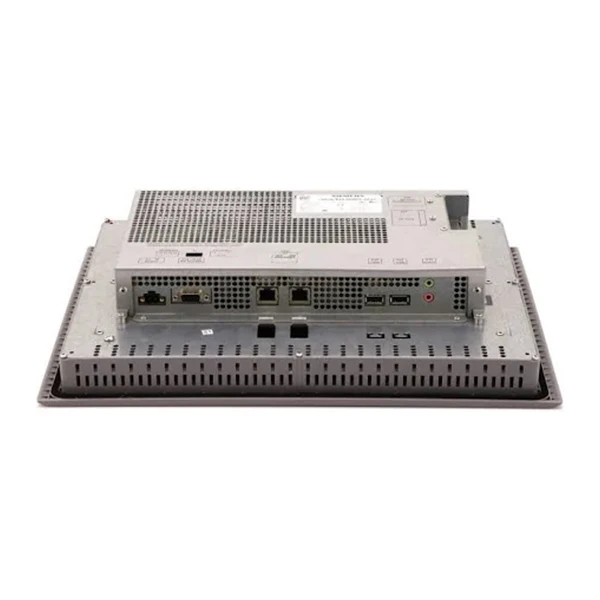
Siemens 6av6644 - 0ab01 - 2ax0 Simatic Mp 377
On the Simatic Mp 377, you can access the alarm log from the main menu. Navigate to the "Diagnostics" section and then select "Alarm Log". From there, you can use the built - in filtering and sorting options to view the data you need.
To manage the data, you can use the data backup function in the HMI's settings. You can choose to back up the data at regular intervals, such as daily or weekly.
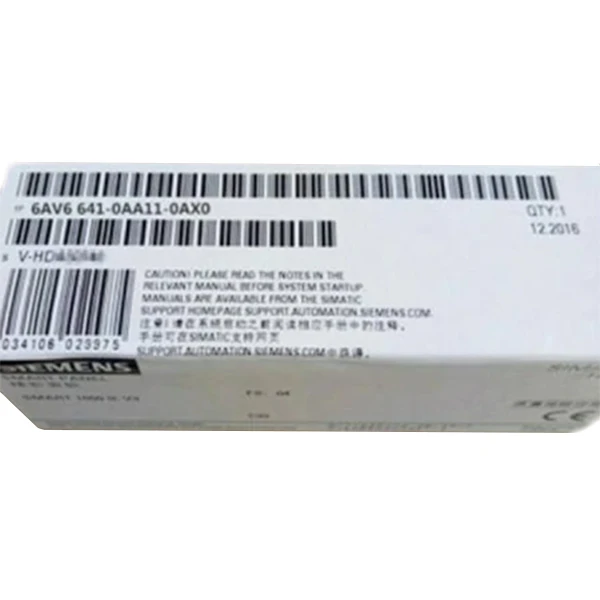
Siemens 6AV6641 - 0AA11 - 0AX0 SIMATIC HMI
For the Siemens 6AV6641 - 0AA11 - 0AX0 SIMATIC HMI, the alarm log is accessible through the "System" menu. Select "Historical Alarms" to view the list. You can filter the data by alarm ID, time, and other parameters.
When it comes to managing the data, you can export it to a CSV file for further analysis. This file can be opened in spreadsheet software like Microsoft Excel, where you can perform more in - depth analysis.
Conclusion
Viewing and managing historical alarm data on Siemens HMI is an essential part of running a successful industrial operation. By following the steps and tips I've shared in this blog, you can gain valuable insights from your alarm data, improve your maintenance strategies, and boost productivity.
If you're interested in learning more about Siemens HMI or are looking to purchase a new HMI for your business, don't hesitate to reach out. We're here to help you find the right solution for your needs. Contact us for a detailed discussion and let's start optimizing your industrial processes together.
References
- Siemens HMI User Manuals
- Industrial Automation Best Practices Guides


