


Hey there! As a supplier of Mitsubishi PLCs, I've had my fair share of dealing with the ins and outs of these amazing devices. One of the most common questions I get from customers is how to configure the communication settings of a Mitsubishi PLC. So, I thought I'd put together this blog post to walk you through the process step by step.
First off, let's talk about why communication settings are so important. In a nutshell, they allow your PLC to talk to other devices, like HMIs (Human - Machine Interfaces), sensors, and other controllers. This communication is crucial for automating processes, monitoring operations, and getting real - time data. Without proper communication settings, your PLC is basically just a standalone device, and you won't be able to fully take advantage of its capabilities.
Okay, so where do we start? Well, the first thing you need to do is figure out what type of communication you want to use. Mitsubishi PLCs support several different communication methods, such as serial communication, Ethernet communication, and fieldbus communication.
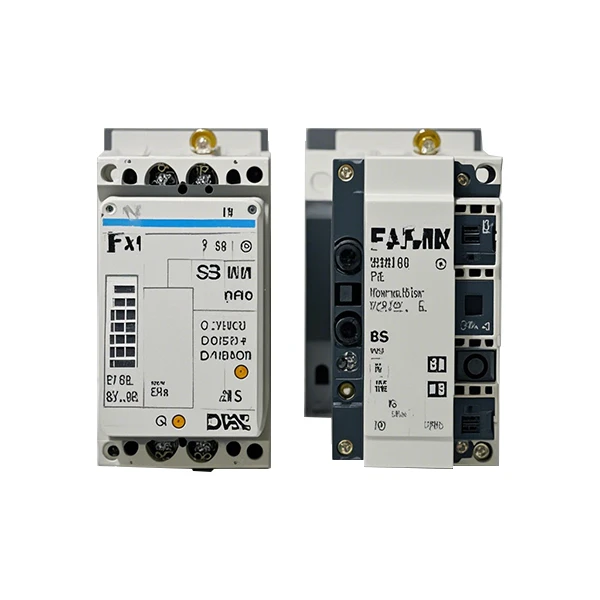
Serial Communication
Serial communication is one of the oldest and most widely used methods. It's simple, reliable, and can be used for short - distance communication. To configure serial communication on a Mitsubishi PLC, you'll need to follow these steps:
- Choose the right cable: You'll need a serial cable that's compatible with your PLC. Make sure the cable has the right connectors and is in good condition.
- Set the communication parameters: In your PLC programming software (like GX Works2), go to the communication settings section. Here, you'll need to set parameters such as baud rate, data bits, stop bits, and parity. The baud rate determines how fast data is transmitted. A common baud rate is 9600 bps, but you can adjust it depending on your needs. Data bits are usually set to 8, stop bits to 1, and parity to none.
- Assign a communication port: Your PLC has one or more serial ports. You need to assign the port you're using for communication. For example, if you're using COM1 on your computer to connect to the PLC, make sure the PLC is configured to use the corresponding serial port.
Ethernet Communication
Ethernet communication is becoming more and more popular because it allows for high - speed data transfer over longer distances. It's great for connecting your PLC to a network, where it can communicate with other devices on the same network. Here's how you configure Ethernet communication:
- Check the hardware: Make sure your PLC has an Ethernet port and that you have a proper Ethernet cable. Connect the PLC to your network switch or router.
- Configure the IP address: In the programming software, go to the Ethernet settings. You'll need to assign an IP address to your PLC. The IP address should be in the same subnet as the other devices on your network. For example, if your network uses the 192.168.1.x subnet, you can assign an IP address like 192.168.1.100 to your PLC.
- Set the subnet mask and gateway: Along with the IP address, you'll also need to set the subnet mask and gateway. The subnet mask determines which part of the IP address is the network address and which part is the host address. The gateway is the device that allows your PLC to communicate with devices outside of its local network.
Fieldbus Communication
Fieldbus communication is used in industrial automation to connect multiple devices in a control system. Mitsubishi PLCs support different fieldbus protocols, such as CC - Link, Profibus, and DeviceNet. Configuring fieldbus communication is a bit more complex than serial or Ethernet communication, but here are the general steps:
- Choose the right fieldbus module: Your PLC may need a specific fieldbus module to support the chosen fieldbus protocol. Install the module in your PLC and make sure it's properly connected.
- Configure the module: In the programming software, go to the fieldbus module settings. Here, you'll need to set parameters such as the station number, communication speed, and data format. The station number is a unique identifier for your PLC on the fieldbus network.
- Connect other devices: Once the module is configured, you can connect other fieldbus - compatible devices to the network. Make sure all the devices are properly configured and that they can communicate with each other.
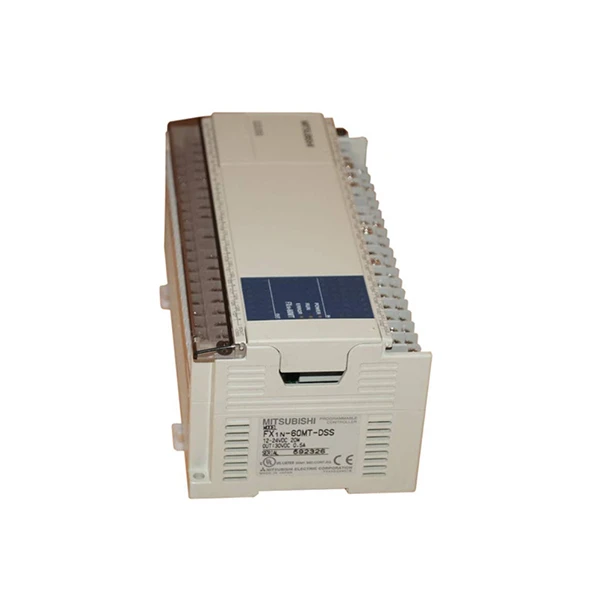
Now, let's talk about some specific Mitsubishi PLC models and their communication settings. For example, the Fx2n 80mr Ds is a popular model. It supports serial communication out of the box, and you can easily configure it using the steps I mentioned earlier. The Mitsubishi FX - 1N - 60MT - DSS PLC also has good communication capabilities, including Ethernet and serial options. And the HG - KN43J - S100 Mitsubishi is often used in motion control applications and may require specific communication settings for optimal performance.
During the configuration process, you may encounter some common issues. For example, if you're having trouble establishing a connection, check the cables first. Make sure they're plugged in correctly and that there are no loose connections. Also, double - check the communication parameters to make sure they match on both the PLC and the other device. If you're still having problems, consult the PLC's user manual or reach out to technical support.
In conclusion, configuring the communication settings of a Mitsubishi PLC is not as difficult as it may seem. With a little bit of knowledge and some patience, you can get your PLC up and running and communicating with other devices in no time. Whether you're using serial, Ethernet, or fieldbus communication, following the right steps and paying attention to the details will ensure a successful configuration.
If you're in the market for a Mitsubishi PLC or need help with configuration, don't hesitate to reach out. We're here to assist you with all your PLC needs, from choosing the right model to getting it set up and running smoothly. Contact us for more information and let's start a conversation about how we can meet your automation requirements.
References
- Mitsubishi Electric Corporation. Mitsubishi PLC User Manuals.
- Various online forums and communities dedicated to industrial automation and PLC programming.


