


Hey there! As a supplier of Schneider HMI (Human-Machine Interface) products, I often get asked about how to set up user accounts on these devices. It's a crucial step for ensuring the security and proper operation of your industrial control systems. In this blog post, I'll walk you through the process of setting up user accounts on Schneider HMI, so you can manage access and permissions effectively.
Why Set Up User Accounts?
Before we dive into the setup process, let's quickly talk about why it's important to set up user accounts on your Schneider HMI. User accounts allow you to control who can access your HMI and what actions they can perform. This is especially important in industrial settings where sensitive information and critical processes are involved. By setting up user accounts, you can prevent unauthorized access, protect your data, and ensure that only authorized personnel can make changes to your control systems.
Types of Schneider HMI
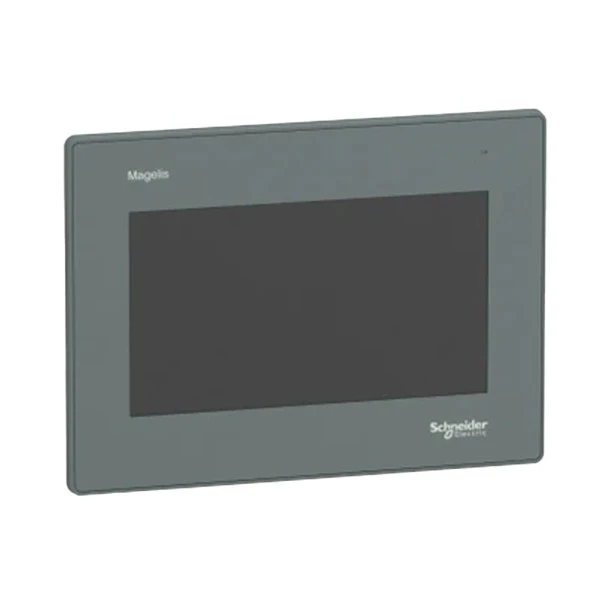
Schneider offers a wide range of HMI products to suit different industrial applications. Some popular models include the XBTGT4230 Schneider Electric, HMIGXU3512 - 7 Inch Widescreen, and HMIS65 Schneider. While the basic process of setting up user accounts is similar across these models, there may be some minor differences in the user interface and menu options.
Step-by-Step Guide to Setting Up User Accounts
Now, let's get into the nitty-gritty of setting up user accounts on your Schneider HMI. The following steps are a general guide, but you may need to refer to your specific HMI's user manual for detailed instructions.
Step 1: Access the User Management Menu
First, you need to access the user management menu on your HMI. This is usually located in the system settings or configuration menu. On most Schneider HMIs, you can access the system settings by pressing the "Menu" or "Settings" button on the HMI screen.

Step 2: Create a New User Account
Once you're in the user management menu, look for an option to create a new user account. This may be labeled as "New User," "Add User," or something similar. Click on this option to start the account creation process.
Step 3: Enter User Information
You'll be prompted to enter the user's information, such as their username, password, and contact details. Make sure to choose a strong password that includes a combination of letters, numbers, and special characters. You may also be able to assign a unique user ID or employee number to the account.
Step 4: Define User Permissions
After entering the user information, you'll need to define the user's permissions. This determines what actions the user can perform on the HMI. Schneider HMIs typically offer a range of permission levels, such as operator, supervisor, and administrator. Each permission level has different access rights and capabilities.
- Operator: Operators can view and control basic functions of the HMI, such as starting and stopping processes, monitoring sensor readings, and adjusting setpoints.
- Supervisor: Supervisors have more advanced access rights than operators. They can view and modify configuration settings, access historical data, and generate reports.
- Administrator: Administrators have full control over the HMI. They can create and manage user accounts, change system settings, and perform system maintenance tasks.
Choose the appropriate permission level for the user based on their job responsibilities. You can also customize the permissions further by enabling or disabling specific functions and features.
Step 5: Save the User Account
Once you've defined the user's permissions, click on the "Save" or "OK" button to create the user account. The new user account will now be added to the HMI's user database.
Step 6: Test the User Account
After creating the user account, it's a good idea to test it to make sure everything is working properly. Log out of the HMI using your current account and log in using the new user account. Try performing some actions that are allowed based on the user's permission level to verify that the account is functioning correctly.
Tips for Managing User Accounts
Here are some tips to help you manage user accounts on your Schneider HMI effectively:
- Regularly Review User Accounts: Periodically review the user accounts on your HMI to ensure that they are still necessary and that the users have the appropriate permissions. Remove any accounts that are no longer needed or that belong to employees who have left the company.
- Change Passwords Regularly: Encourage users to change their passwords regularly to prevent unauthorized access. You can set up password expiration policies on the HMI to enforce this.
- Keep User Information Up-to-Date: Make sure to keep the user information, such as contact details and permission levels, up-to-date. This will ensure that users have the correct access rights and that you can contact them if necessary.
- Use Multi-Factor Authentication: Consider using multi-factor authentication to add an extra layer of security to your user accounts. This may involve using a combination of passwords, security tokens, or biometric authentication methods.
Contact Us for More Information
If you have any questions or need further assistance with setting up user accounts on your Schneider HMI, don't hesitate to reach out to us. As a trusted supplier of Schneider HMI products, we have the expertise and experience to help you with all your HMI needs. Whether you're looking to purchase a new HMI, upgrade your existing system, or need technical support, we're here to help.
Feel free to contact us to discuss your requirements and explore the best solutions for your industrial applications. We look forward to working with you!
References
- Schneider Electric. (Year). [Model-specific HMI user manual]. Retrieved from [URL]
- Schneider Electric. (Year). HMI Security Best Practices. Retrieved from [URL]


